

Account Settings
Open Settings from the bottom of the sidebar. One tab bar covers your account and this organization.
Profile
Section titled “Profile”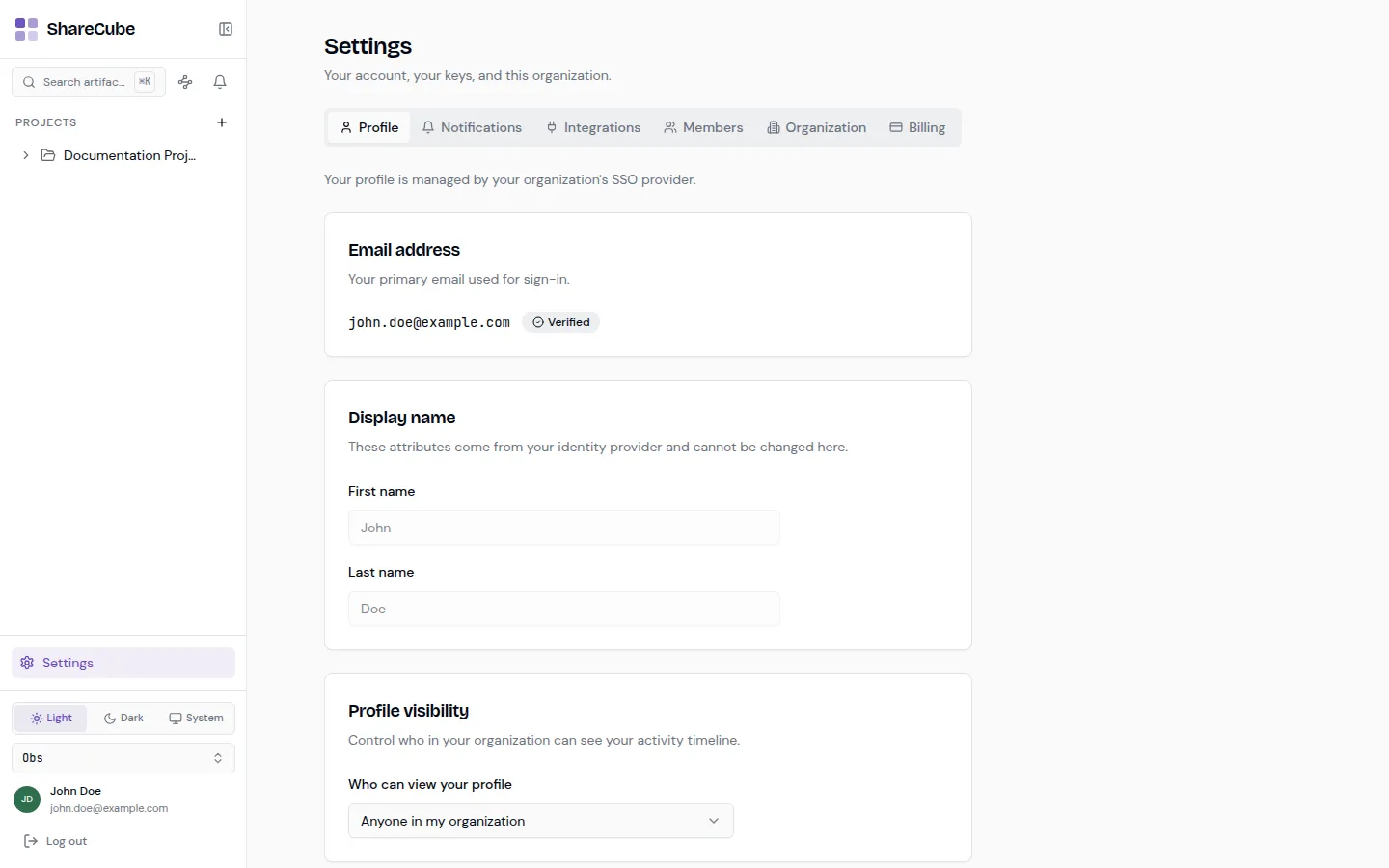
If your org uses SSO, the profile is managed by the identity provider. Email and display name are read-only. You will see a Verified badge on the address you sign in with.
Profile visibility controls who in the organization can see your activity timeline. The usual default is anyone in the org.
Further down the same tab:
- Two-factor authentication, when your identity provider allows it. Use Set up authenticator if 2FA is disabled and you want a second factor.
- Sign-in methods, for example SSO (SAML) marked as connected.
Notifications
Section titled “Notifications”The bell in the sidebar is the in-app inbox. New project invites, comments, and similar events show up there.
Email is separate, and off by default. Open Settings → Notifications to opt in.
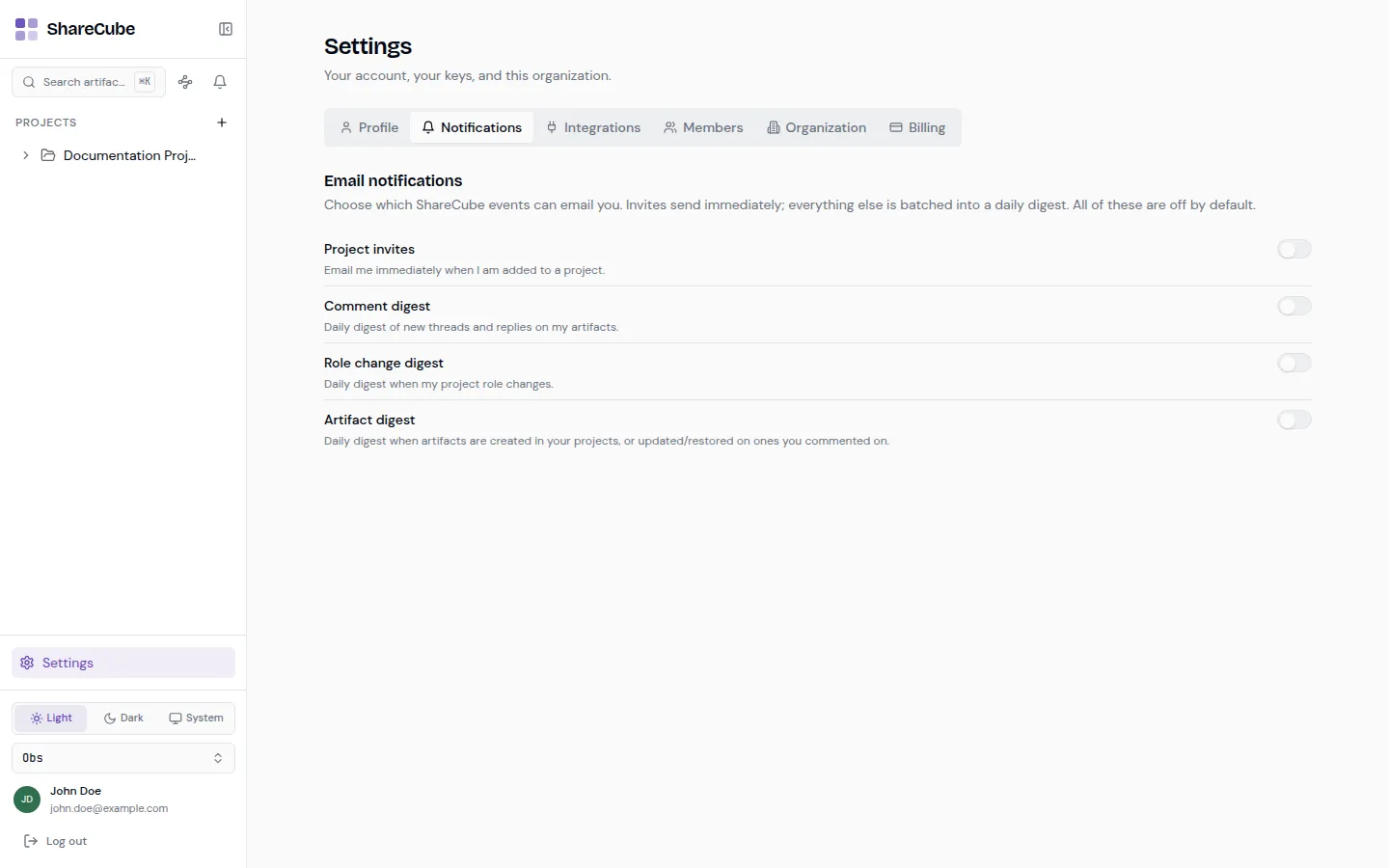
| Preference | When it sends |
|---|---|
| Project invites | Immediately, when you are added to a project. |
| Comment digest | Daily, new threads and replies on your artifacts. |
| Role change digest | Daily, when your project role changes. |
| Artifact digest | Daily, when artifacts are created in your projects, or updated / restored on ones you commented on. |
The Light / Dark / System control lives in the sidebar, not in Settings. System follows your OS. The preference is yours alone. It does not change how artifacts look for other people.
Integrations
Section titled “Integrations”API keys and MCP client setup live on the Integrations tab. That is covered in MCP and API keys.
Members, Organization, Billing
Section titled “Members, Organization, Billing”Those tabs are org-wide. See Organizations.