

Projects and Roles
A project is a folder of artifacts plus a membership list. Access to private artifacts comes from the role you have on that project (or from a share link, if the artifact is org-visible or public).
Create a project
Section titled “Create a project”Click the + next to PROJECTS in the sidebar. Name it, then click Create project. You become Owner.
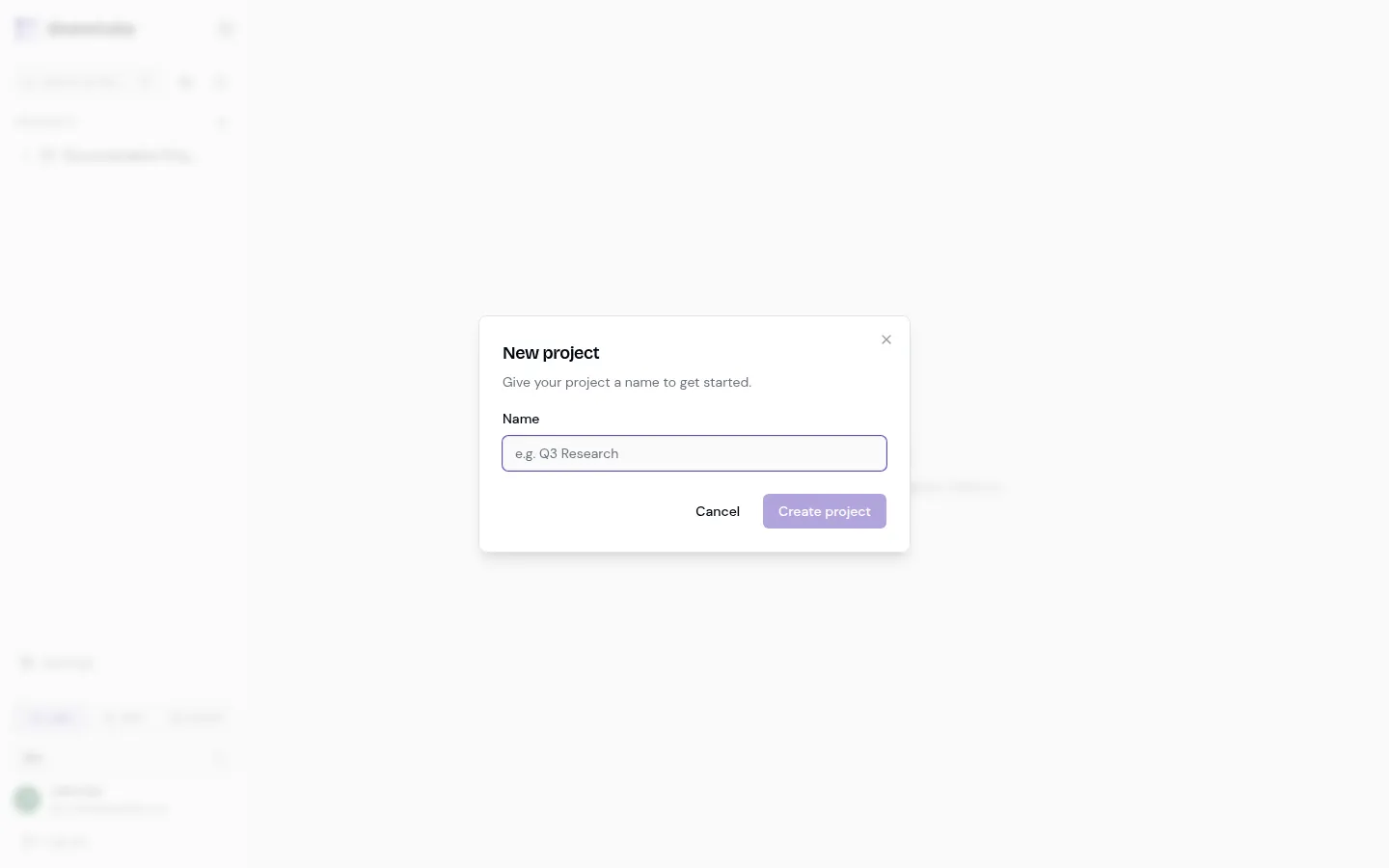
Agents can also create projects over MCP with create_project. See MCP and API keys.
Open project settings
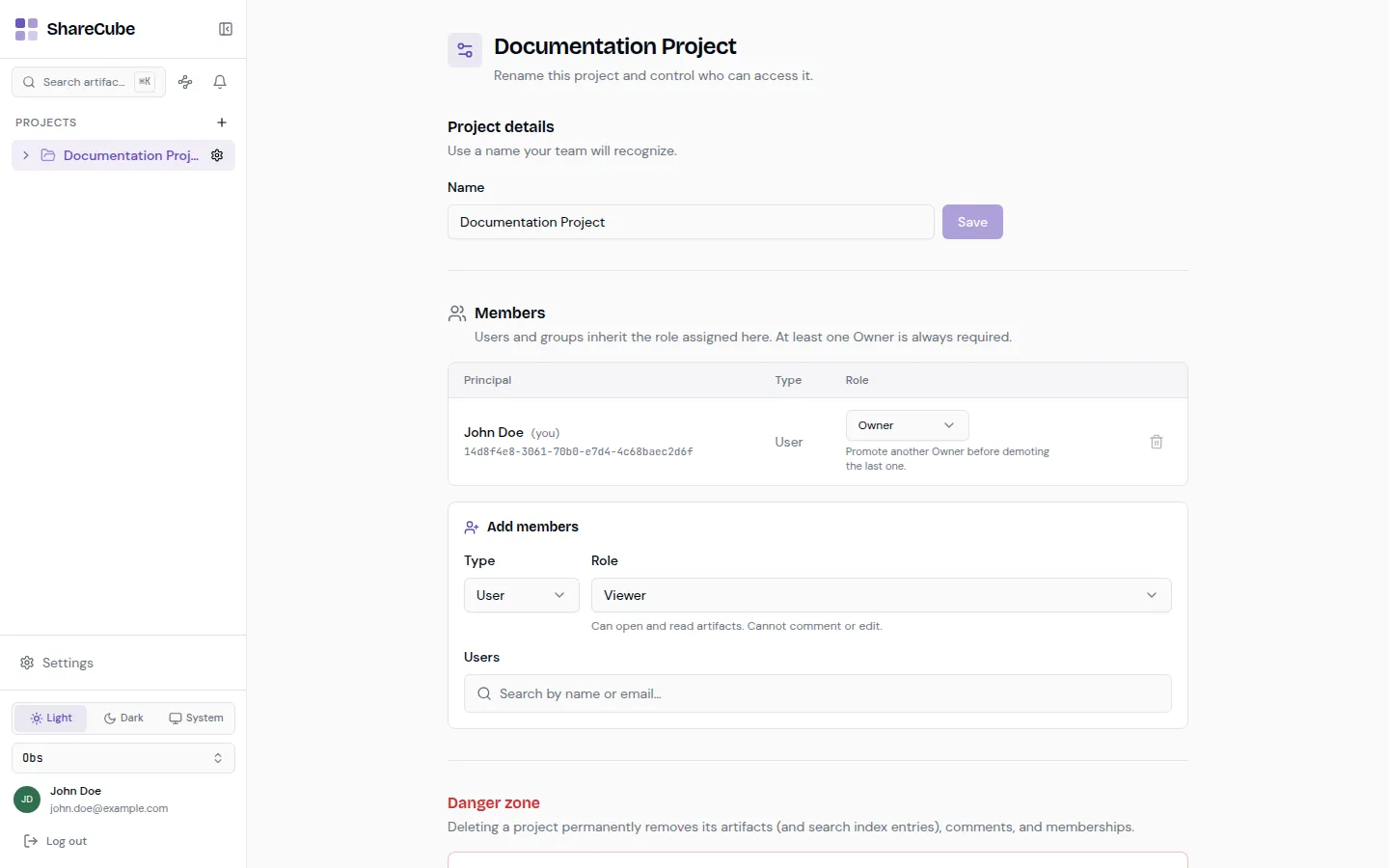
Section titled “Open project settings”Expand the project in the sidebar and click the gear next to its name. The settings page is where you rename the project, manage members, and delete it.
-
Rename the project
Section titled “Rename the project”Change the Name field and click Save. Use a name people will recognize in search and in the sidebar.
-
Review members
Section titled “Review members”The members table lists each principal (a user or a group), their type, and their role. At least one Owner is always required. You cannot demote or remove the last Owner until you promote someone else.
-
Add members
Section titled “Add members”Under Add members:
- Choose User or Group.
- Pick a role (see the table below).
- Search by name or email, then add the selected people.
Groups come from the organization. Assigning a group is a good way to give a whole team the same role without listing everyone.
-
Leave or remove someone
Section titled “Leave or remove someone”Use the trash icon on a row. If you remove yourself, you lose access until an Owner adds you again.
Roles are per project. They decide what someone can do with artifacts and comments in that project.
| Role | What they can do |
|---|---|
| Viewer | Open and read artifacts. Cannot comment or edit. |
| Commenter | Read artifacts and leave comments. Cannot create or edit artifacts. |
| Editor | Create, edit, and delete artifacts, and moderate comments. |
| Owner | Everything an Editor can do, plus members, settings, and deleting the project. |
Delete a project
Section titled “Delete a project”The Danger zone at the bottom permanently removes the project’s artifacts (including search index entries), comments, and memberships. This cannot be undone. Only an Owner can do it.