

Claude: connector
Showing setup for , from the link you followed.
A custom connector adds the ShareCube MCP server to your Claude account, so it follows you to every Claude app you sign in to. It does not include the sharecube skill; use the plugin if you want that too.
-
Add a custom connector
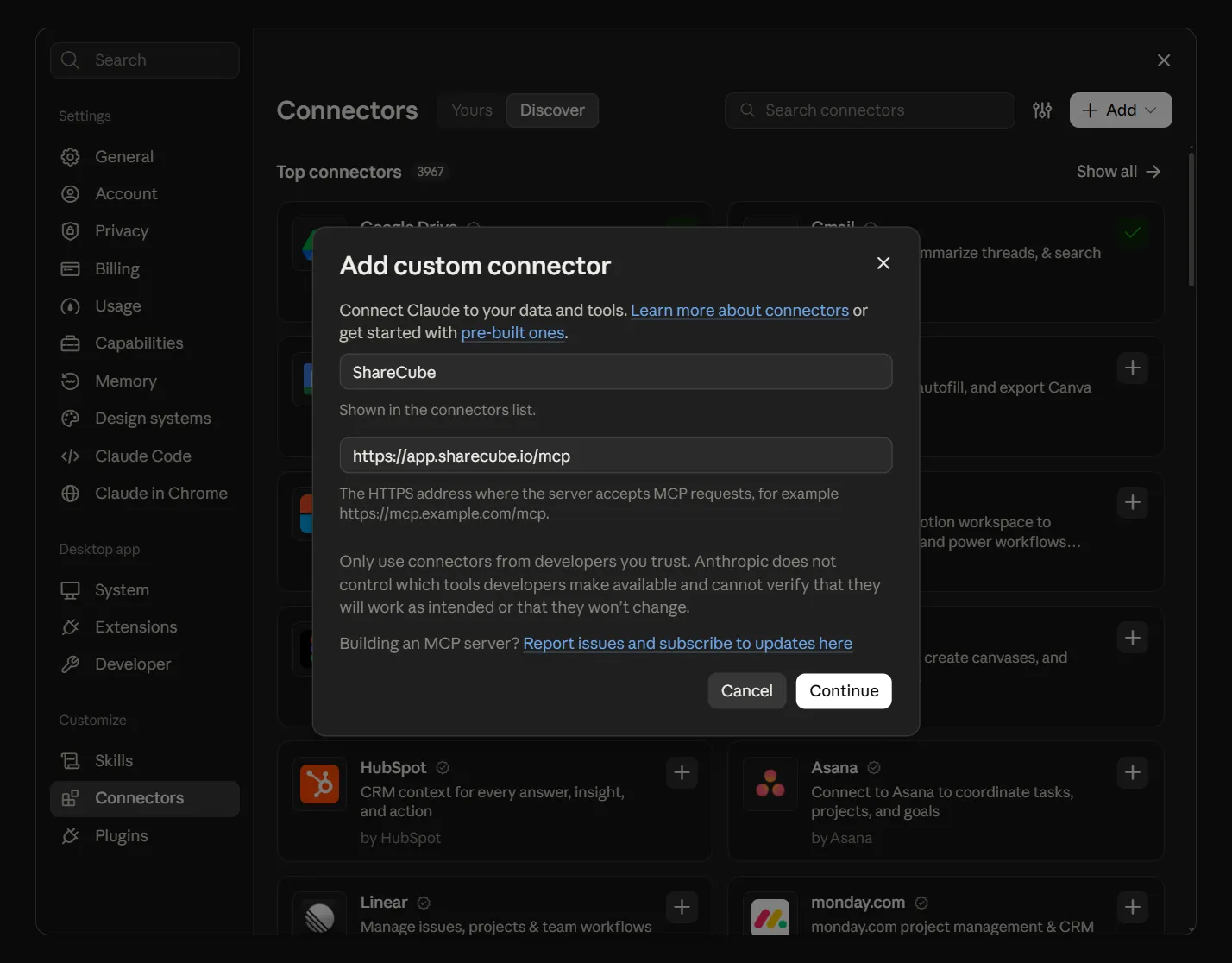
Section titled “Add a custom connector”Go to Settings → Connectors, then click Add → Add custom connector. Fill in:
Name
ShareCubeURL
https://app.sharecube.io/mcpClick Continue.
-
Keep the detected sign-in settings
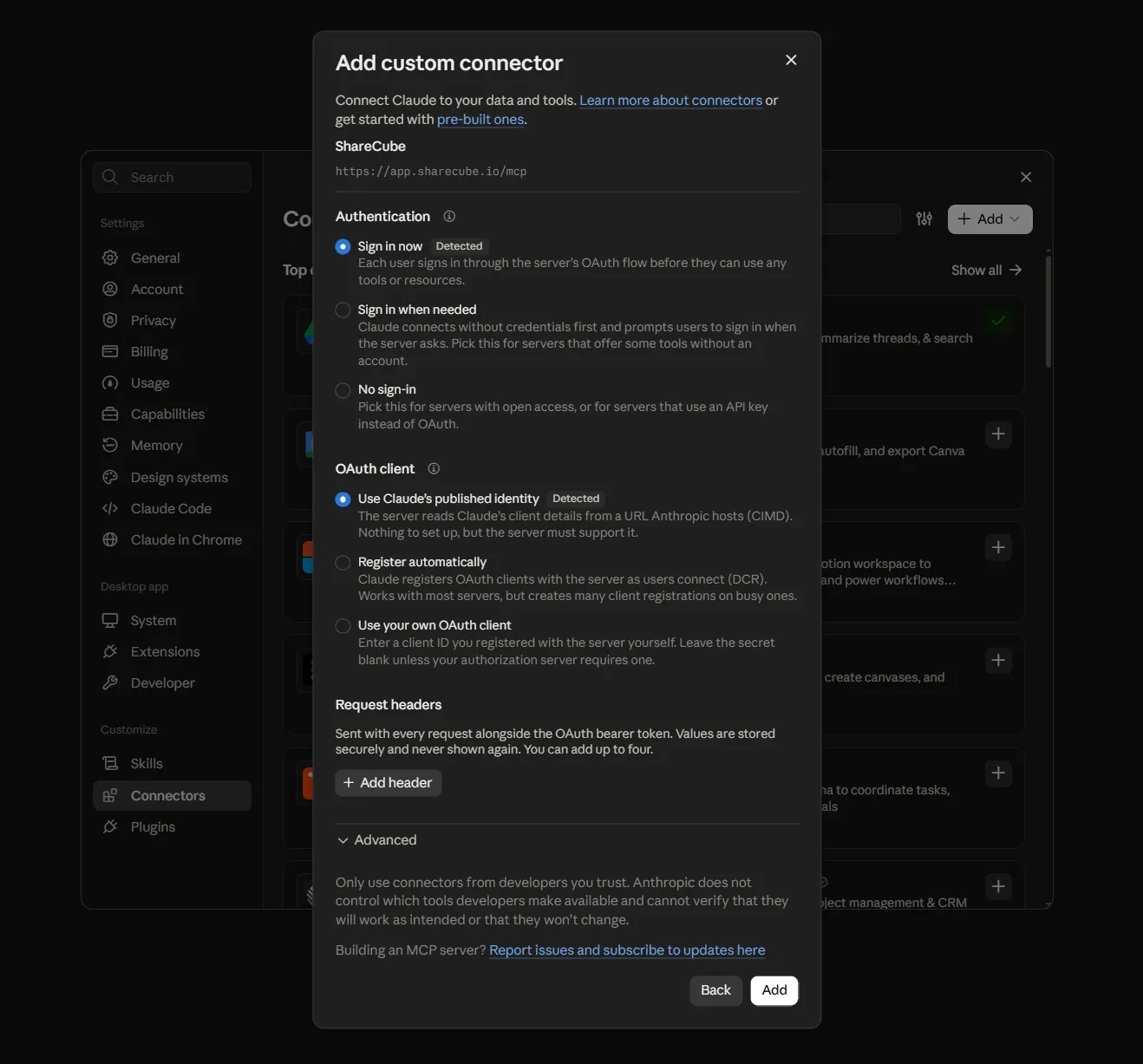
Section titled “Keep the detected sign-in settings”Claude detects how ShareCube signs in. Leave the defaults, Sign in now and Use Claude’s published identity. No request headers are needed. Click Add.
-
Connect
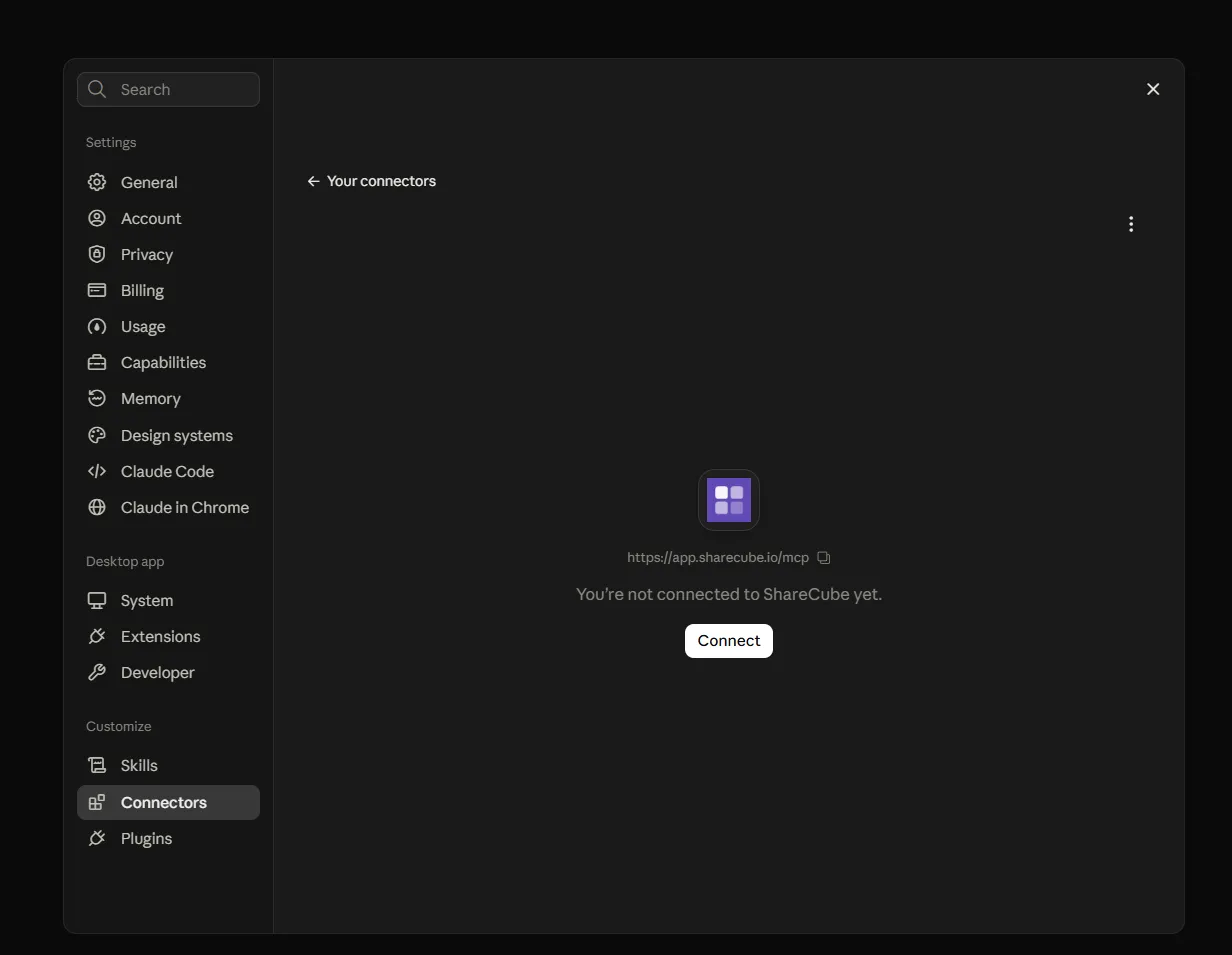
Section titled “Connect”ShareCube appears in your connectors as not connected yet. Click Connect, pick your organization, and click Connect again. See Signing in.
-
Set tool permissions
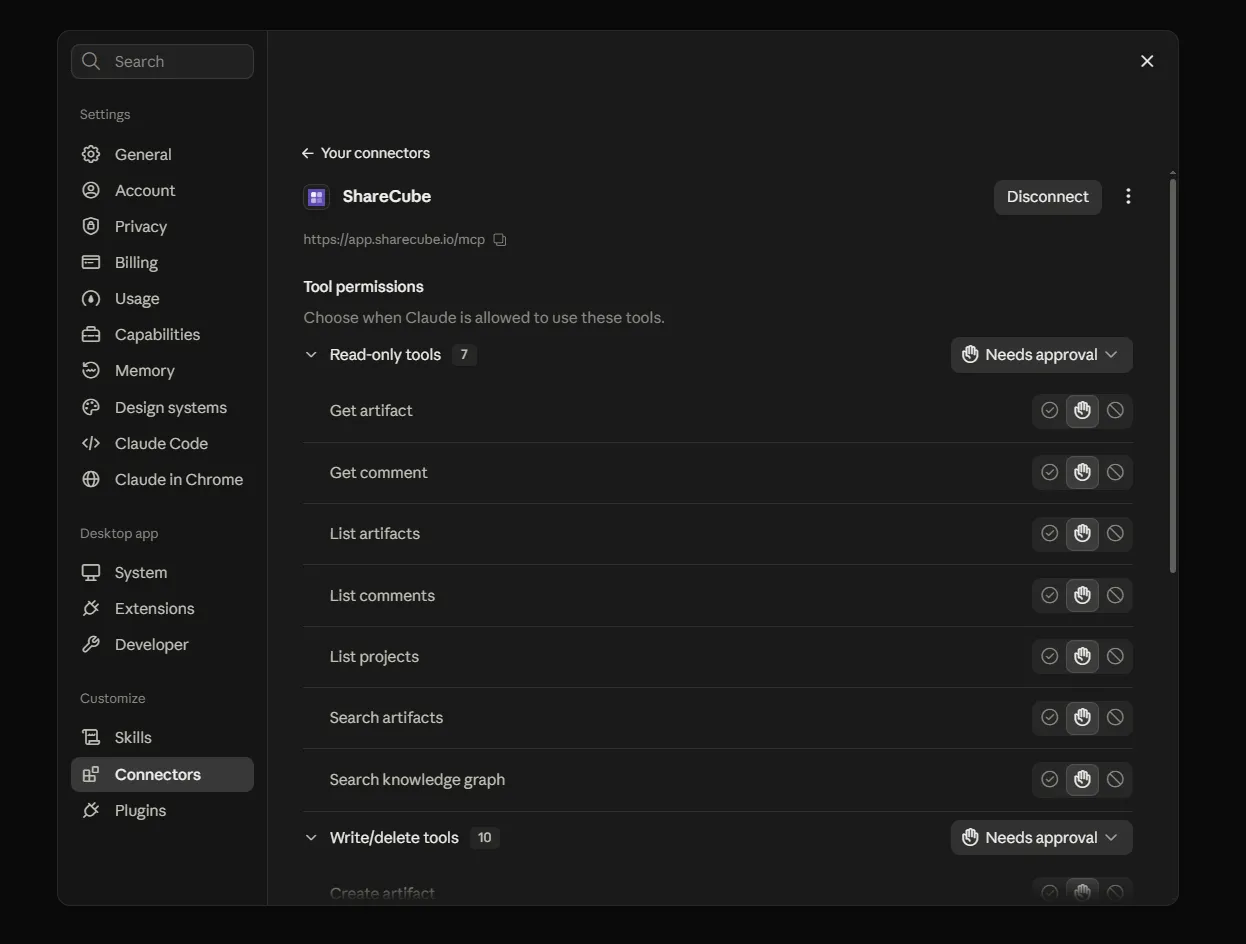
Section titled “Set tool permissions”The connector page lists ShareCube’s tools in two groups: Read-only tools and Write/delete tools. Both start at Needs approval, so Claude asks before each call. Switch a group or a single tool to always allow, or block it.
-
Try it
Section titled “Try it”In a new chat, turn ShareCube on from the tools menu and ask:
List my ShareCube projects