

Getting Started
Open ShareCube and sign in
Section titled “Open ShareCube and sign in”ShareCube uses your Infragate organization identity. You sign in once, then land in the workspace for the org that is currently active.
Open ShareCube-
Sign in
Section titled “Sign in”Go to app.sharecube.io. Enter your email and continue. You can sign in with Google, GitHub, a username and password, or SSO if your organization uses it.

-
Look around the workspace
Section titled “Look around the workspace”After sign-in you land on the workspace. If the org already has projects, ShareCube asks you to Select an artifact. If it is empty, you get a Create your first project button instead.
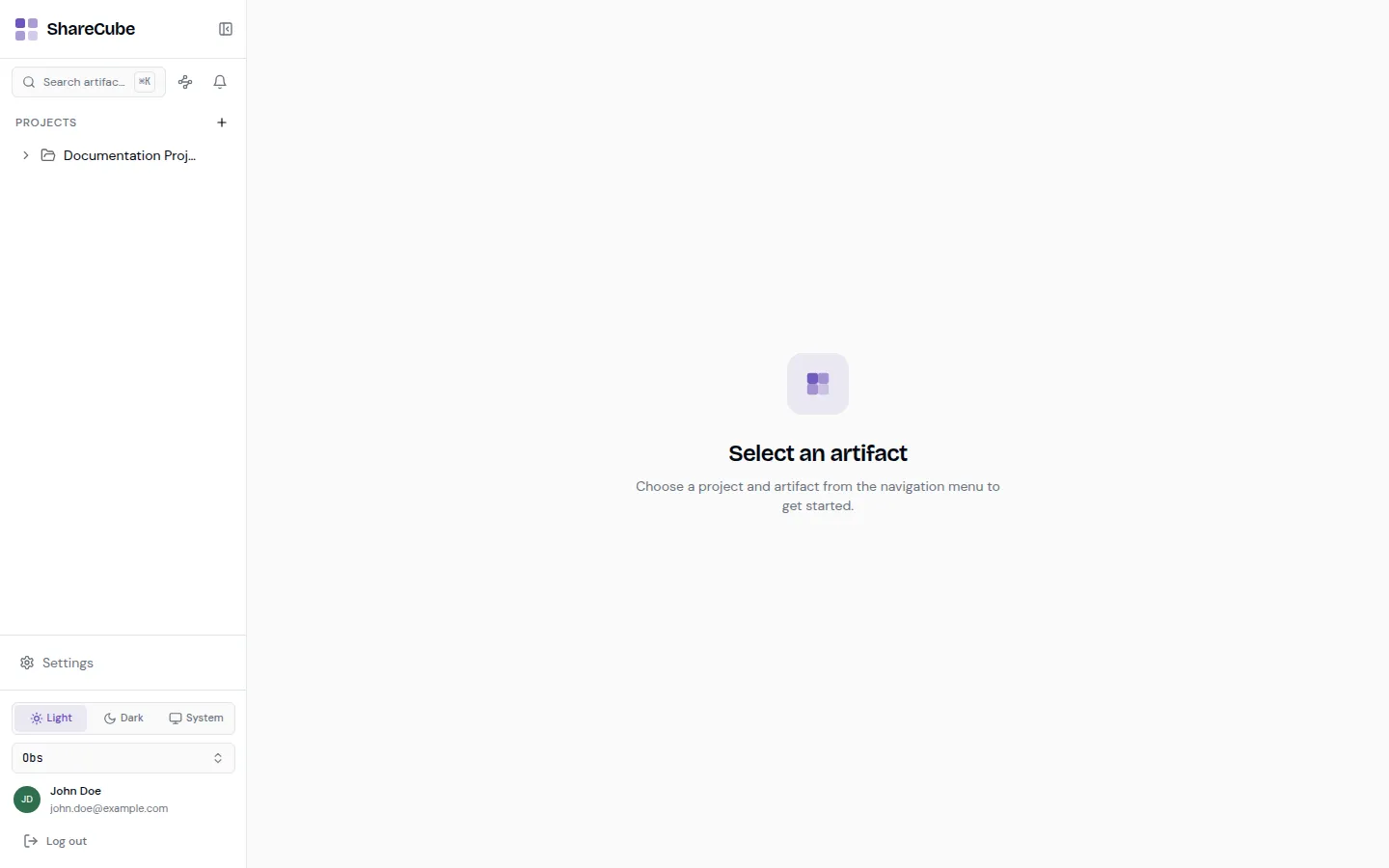
The left sidebar is the main navigation:
- Search at the top, with a
⌘K/Ctrl+Kshortcut. - Graph and Notifications icons next to search.
- Projects list, plus a
+button to create a project. - Settings at the bottom.
- Light / Dark / System theme toggle.
- Organization switcher (the current org name).
- Your profile and Log out.
- Search at the top, with a
-
Create a project
Section titled “Create a project”Click Create your first project, or the
+next to PROJECTS. Give it a name your team will recognize, then click Create project.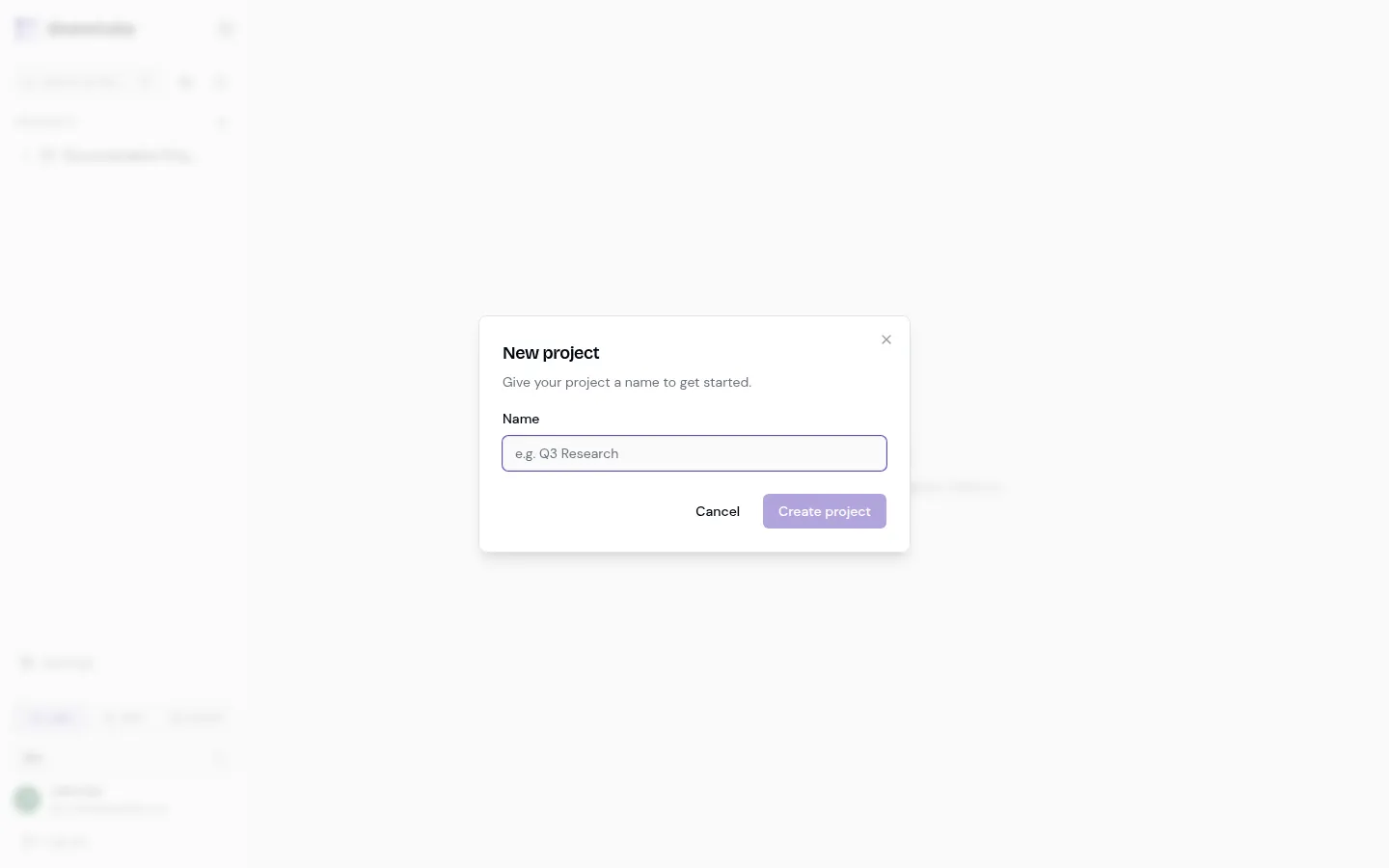
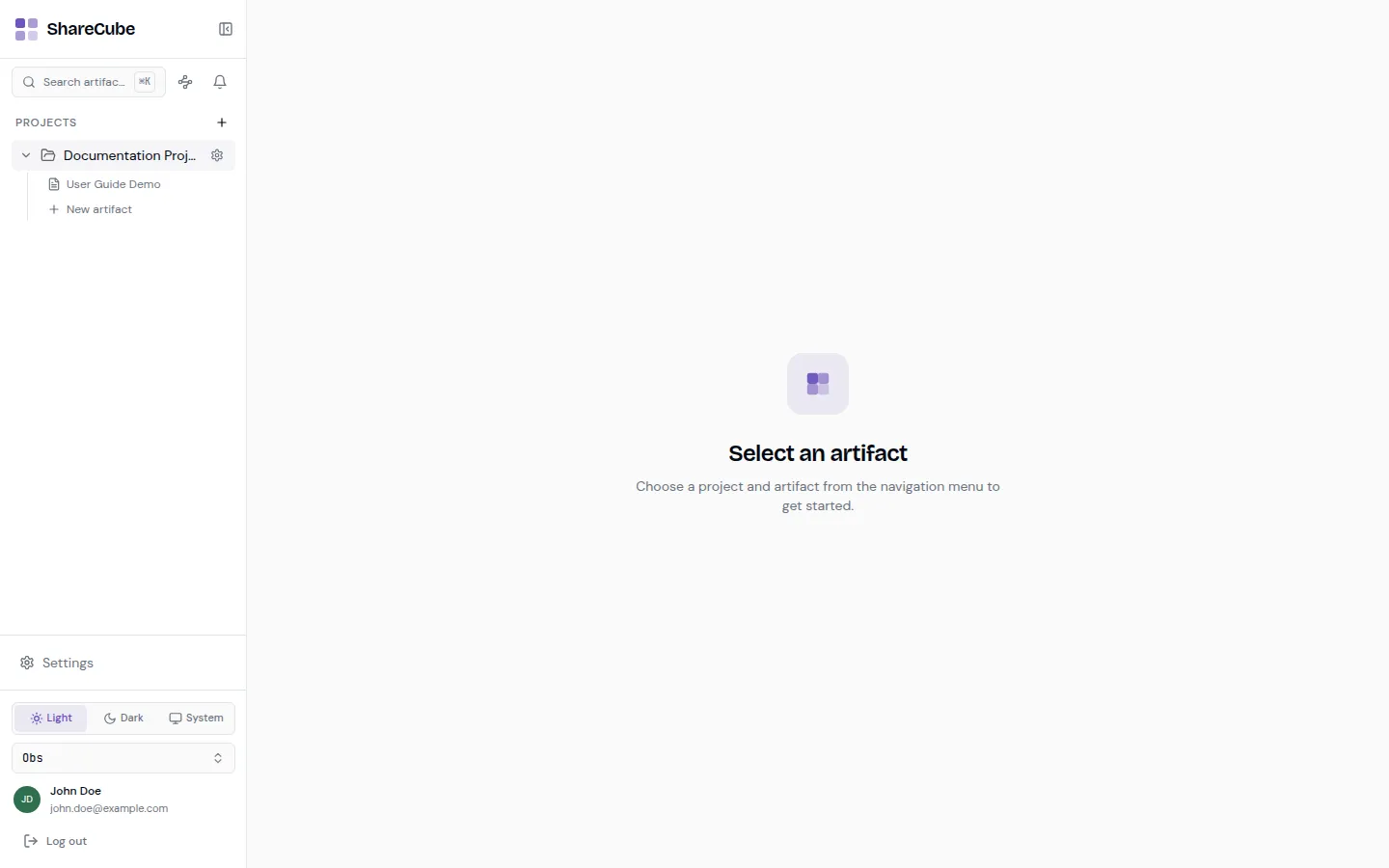
You become the project Owner. The project appears in the sidebar. From here you can add artifacts or open project settings (the gear next to the project name).
What to do next
Section titled “What to do next”- Create an artifact by hand, or connect an MCP client so an agent can publish one.
- Invite people if you want teammates on this project.
- Tune sharing before you send a link outside the team.