

Servers and Tools
A server is a remote MCP endpoint: Atlassian, Linear, GitHub, your own. A gateway can hold several. What agents actually see is not the server’s whole tool list, it is the tools you ticked.
Add a server
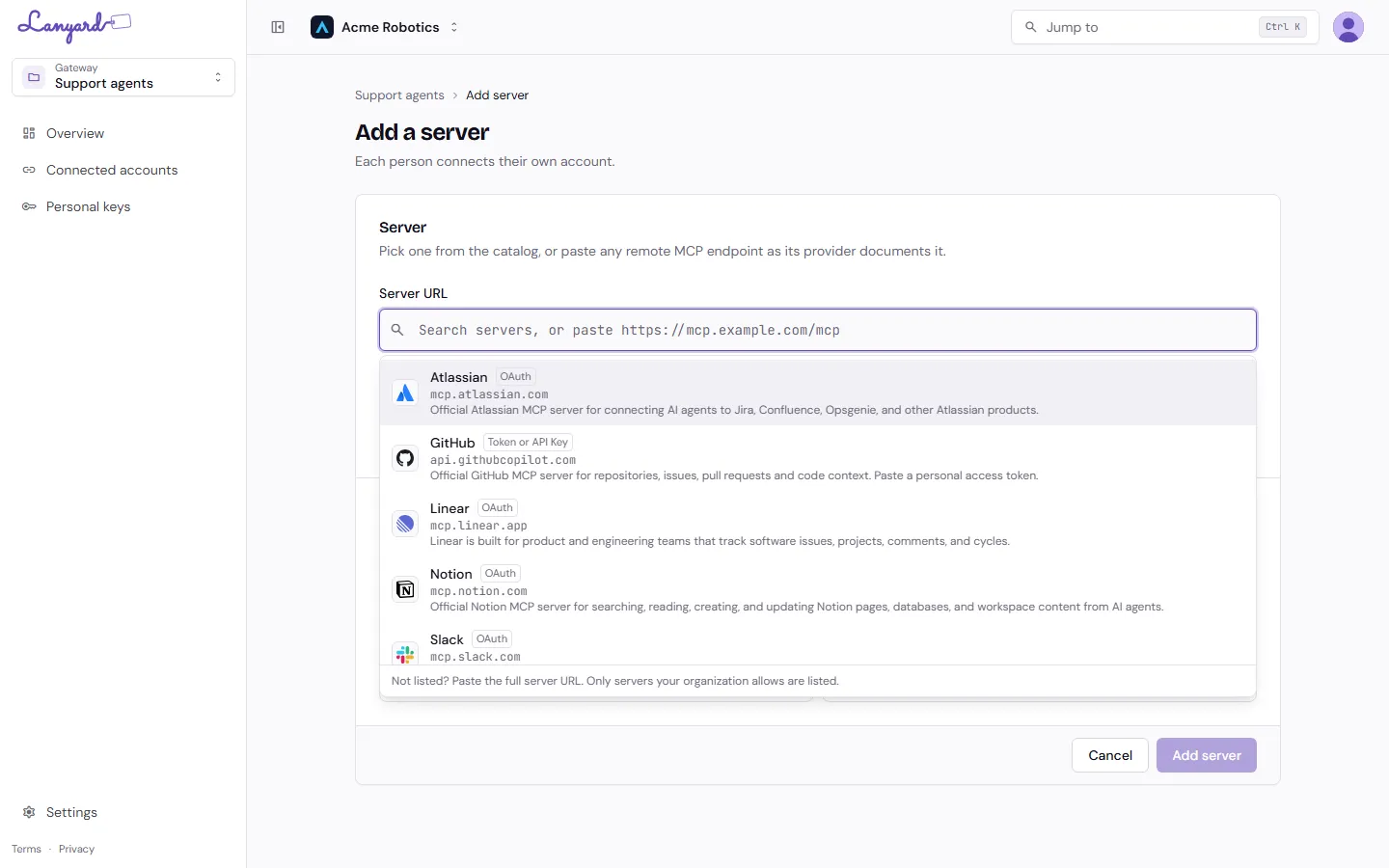
Section titled “Add a server”Add server on the gateway’s Overview.
-
Pick it, or paste it
Section titled “Pick it, or paste it”Type to search the catalog, which carries the well-known remote MCP servers with their endpoint, sign-in method and icon. If yours is not listed, paste the full server URL exactly as its provider documents it.
-
Let Lanyard work out the sign-in
Section titled “Let Lanyard work out the sign-in”The catalog knows whether a server uses OAuth, a token, or no sign-in at all. For a pasted URL, Lanyard asks the server. You can correct it afterwards under Manage server.
-
Read-only tools are enabled for you
Section titled “Read-only tools are enabled for you”Lanyard fetches the tool list and ticks the tools the server marks as read-only. Anything that writes or deletes stays off until you turn it on deliberately. If the server offers no read-only tools, it is added as a draft and waits for you.
Choose the tools
Section titled “Choose the tools”Open a server from the Overview to get its page.
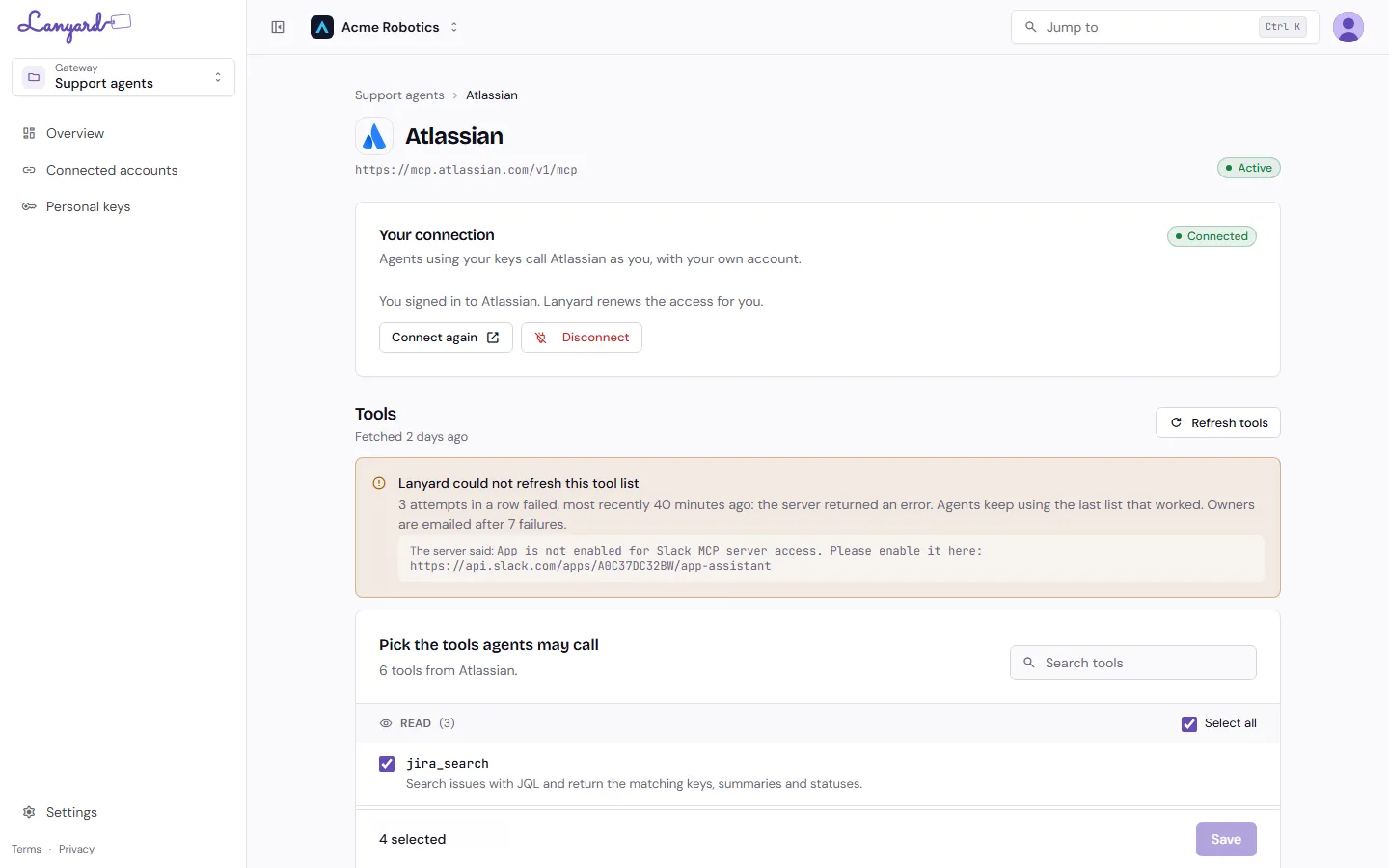
Tools are grouped by what they can do, which is the grouping that matters when you are deciding:
- Read cannot change anything. Safe to turn on as a set.
- Write can change data. Each one says so next to its name.
- Destructive can delete data. Tick one only if your agents truly need it.
Search filters the list. Select all applies to the group next to it, not the whole page. The bar at the bottom counts what you have selected and saves it.
Two things worth knowing:
Tool lists change under you. Providers add, rename and drop tools. Lanyard refetches periodically, and Refresh tools does it now. If a refresh fails, agents keep using the last list that worked and the page tells you what the server said. Owners are emailed after seven failures in a row.
Tools you allowed that vanished are kept. They appear under Not in the current tool list, still ticked. If the provider brings the tool back, it works again without you noticing. Untick and save to drop it for good.
Manage a server
Section titled “Manage a server”Lower down the same page, for gateway owners and org admins.
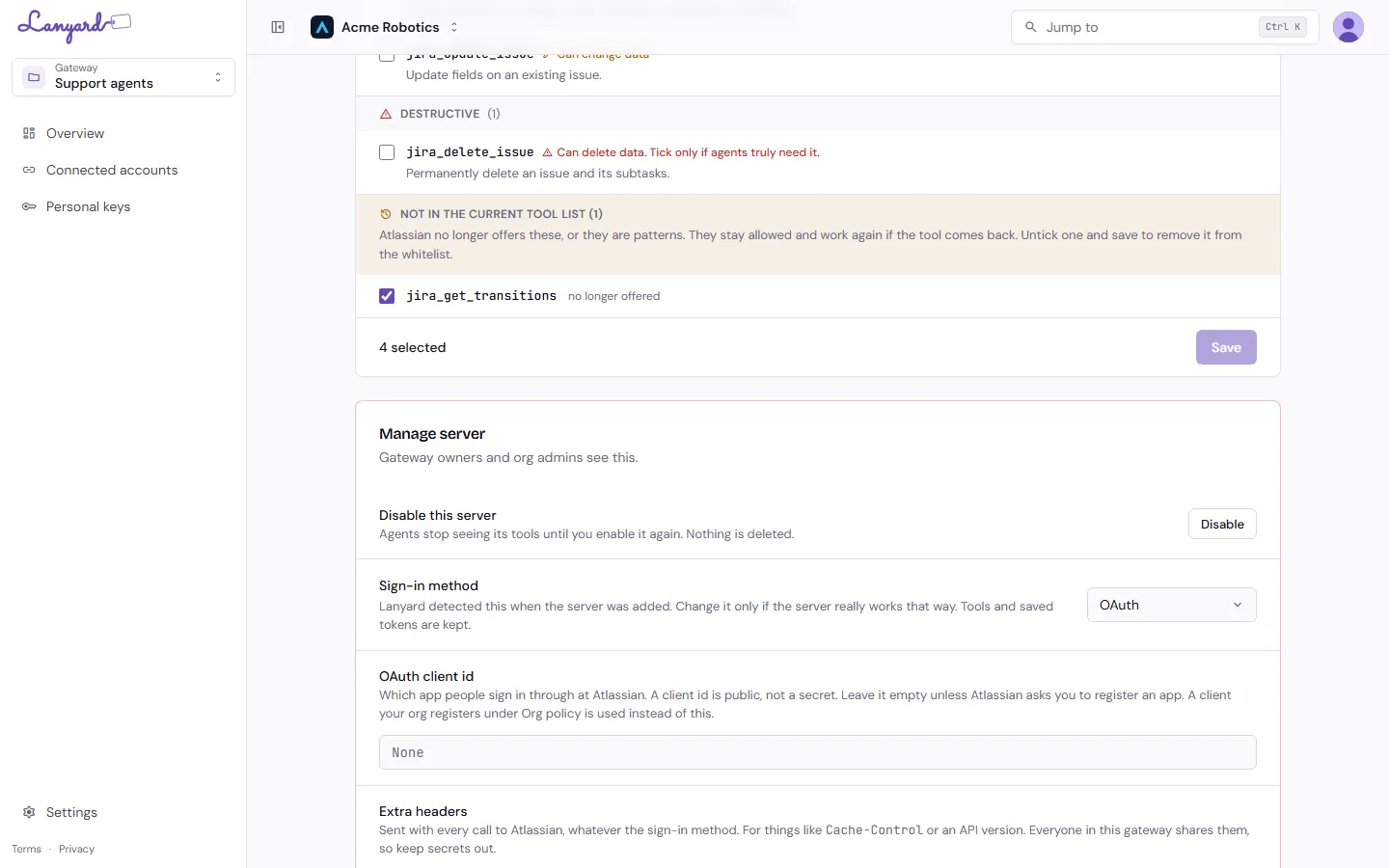
Disable this server. Agents stop seeing its tools. Nothing is deleted, no tokens are lost, and enabling it puts everything back.
Sign-in method. OAuth, a token, or none. Lanyard detected this when the server was added; change it only if the server really works the other way. Tools and saved tokens survive the change.
OAuth client id. Only for providers that make you register an app instead of letting Lanyard register itself. A client id is public, not a secret. Leave it empty unless the provider asks. A client your org registered under OAuth clients is used instead of this one.
Extra headers. Sent with every call to this server, whatever the sign-in method, for things like Cache-Control or an API version. Everyone in the gateway shares them, so keep secrets out. Anything that carries a credential belongs in Connected accounts, which is per person.
Remove from gateway. Agents lose its tools right away. People’s saved tokens for that server are kept, so it still works in other gateways they use.