
Connected Accounts
Most MCP servers want to know who is calling. Lanyard asks each person to sign in once, keeps the result, and uses it for that person’s agents. Your agent calls Jira as you, with your permissions, from your account.
This is the part that does not carry over when a gateway is shared or imported. Everyone connects their own.
Your connections
Section titled “Your connections”Connected accounts in the gateway’s sidebar.
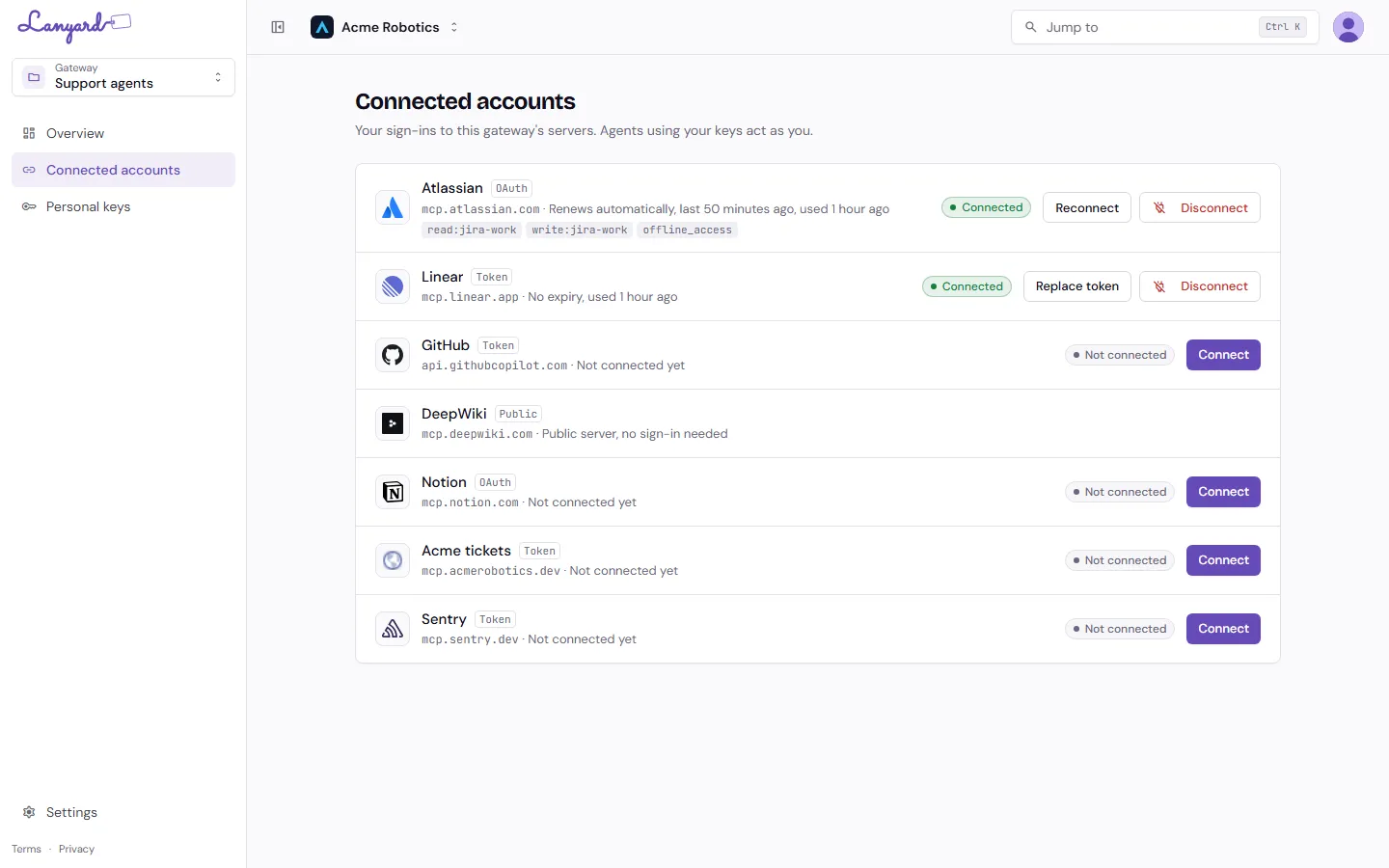
Every server in the gateway is listed with how it signs you in and where you stand:
- OAuth sends you to the provider, you approve, and Lanyard renews the access for you. The row shows the scopes you granted, when it last renewed, and when an agent last used it.
- Token means you paste a token the provider gives you. You choose whether it expires.
- Public means the server needs no sign-in. Nothing to do.
Reconnect runs the sign-in again, which is what you want after changing scopes at the provider. Replace token swaps a pasted token without disconnecting first. Disconnect removes it; your agents lose that server until you connect again.
Connecting
Section titled “Connecting”Click Connect on a row.
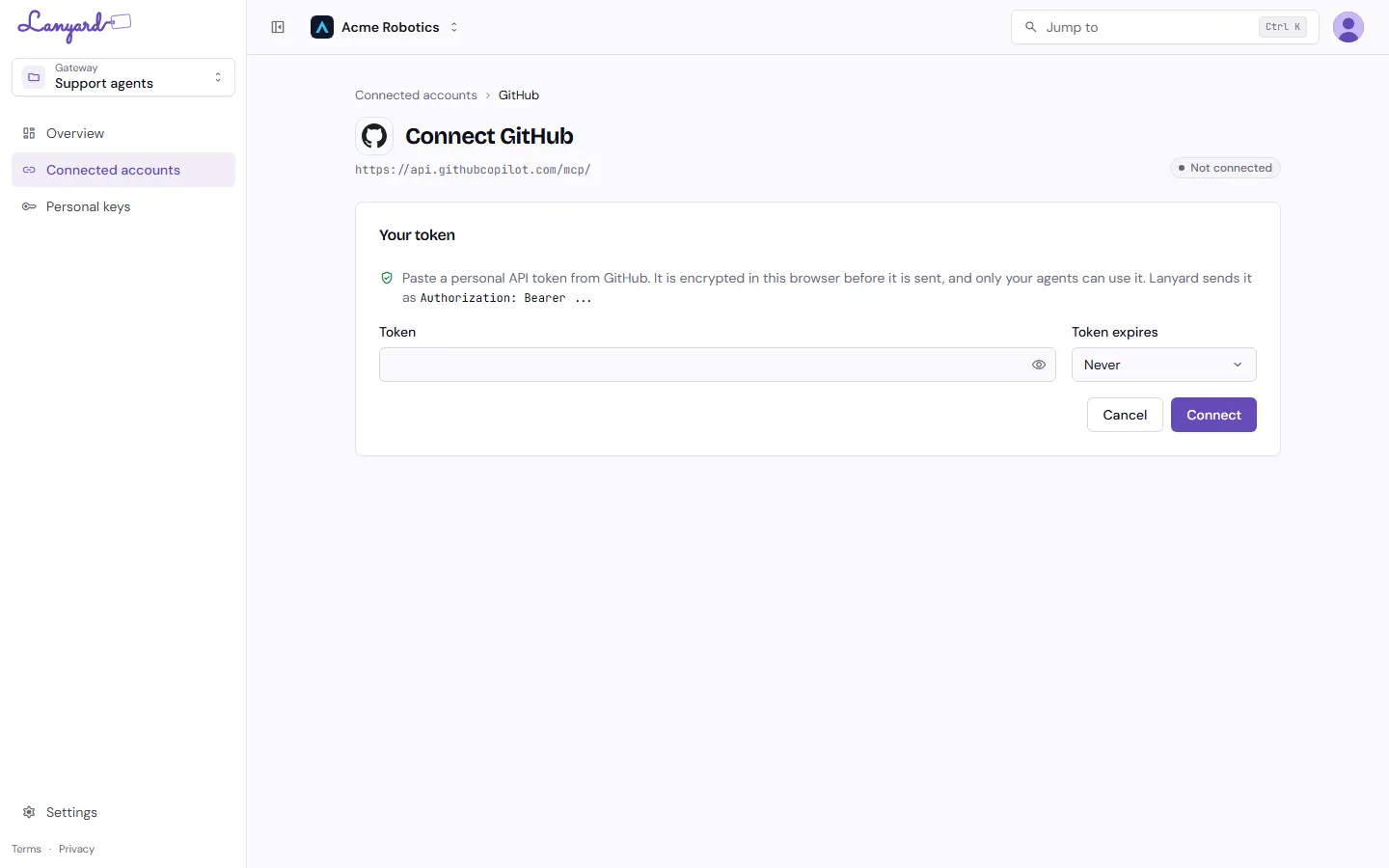
For a token server, paste the token the provider gave you and choose an expiry if it has one. The token is encrypted in your browser before it is sent, and Lanyard sends it upstream as the header that server expects. For OAuth, a provider window opens and you approve there.
When a connection is the thing that is missing
Section titled “When a connection is the thing that is missing”A server with no connection still shows in the gateway, greyed out in the diagram with “setup incomplete”. Agents calling one of its tools get an error telling them to connect.
Gateway owners can see who still needs to connect from the Get set up panel on the Overview. They cannot connect on anybody’s behalf, which is the point.