

Keys and Agent Setup
A key is how one agent proves it is acting as you in one gateway. Keys are personal: only you see yours, and only in the gateway they belong to.
Personal keys
Section titled “Personal keys”Personal keys in the gateway’s sidebar.
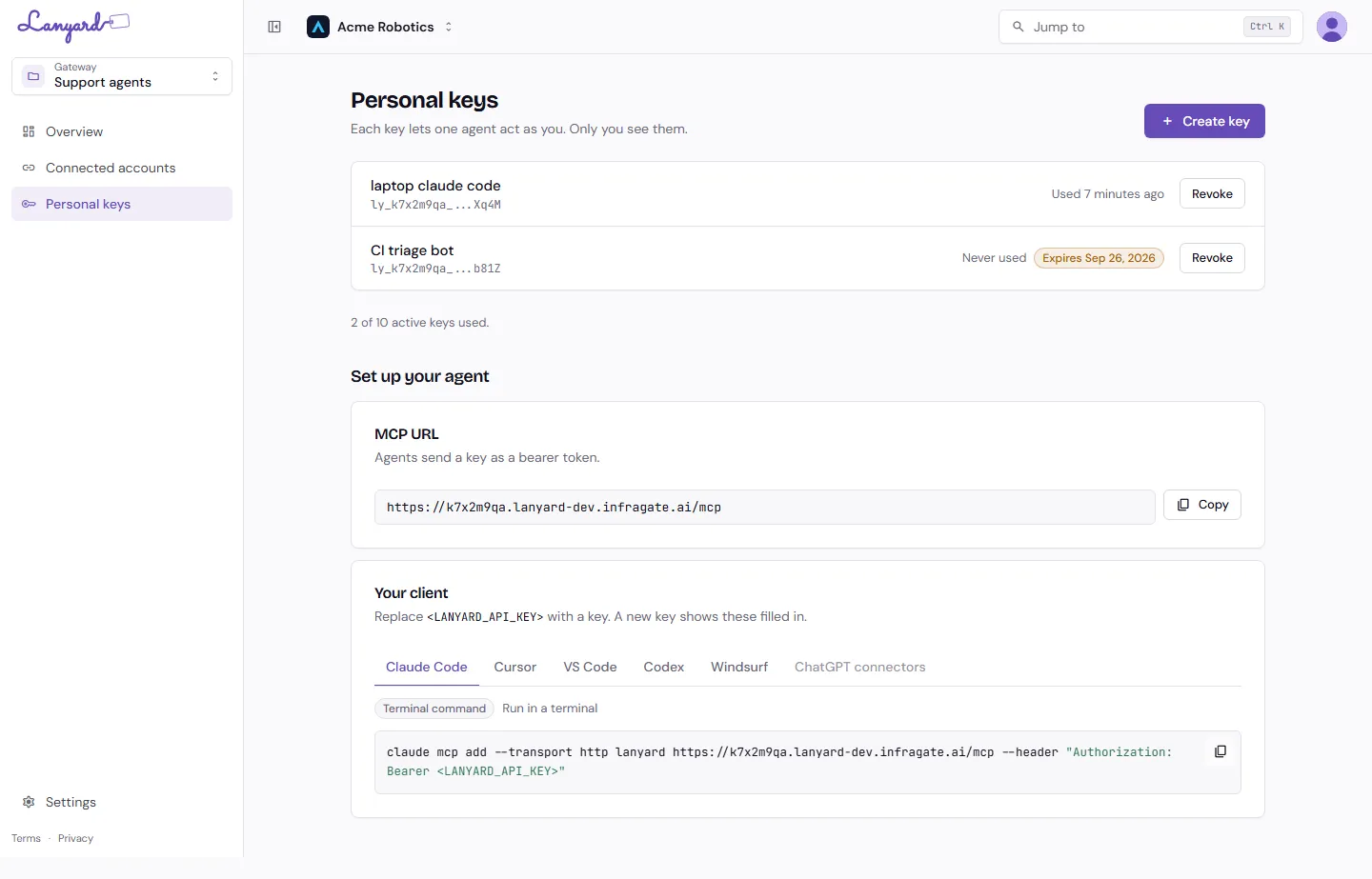
Create key asks for a name and an optional expiry. Name it after the agent that will hold it, not after yourself: “laptop claude code”, “CI triage bot”. You will thank yourself the day you need to revoke exactly one of them.
The secret is shown once, when the key is created. Copy it then. Lanyard keeps only a prefix and a hash, so nobody, including support, can read it back to you.
Each row shows when the key was last used, which is the quickest way to find the one nothing is using any more. Revoke stops that key immediately and does not touch the others.
Set up your agent
Section titled “Set up your agent”Under the key list, Set up your agent has the two things a client needs.
MCP URL is the gateway’s own hostname plus /mcp. Agents send their key as a bearer token.
Your client has the exact command or config file for each client Lanyard supports: Claude Code, Cursor, VS Code, Codex, Windsurf, and ChatGPT connectors. The gateway’s URL is already filled in. <LANYARD_API_KEY> is the only thing you replace, and creating a key from this page fills it in for you.
Copy, paste, restart the client, and its tool list is whatever you allowed in this gateway.
When an agent is refused
Section titled “When an agent is refused”Lanyard answers the agent with a sentence and a link rather than a bare error code, so whoever is reading the agent’s output can act on it:
| What the agent sees | What it means |
|---|---|
| The key is not valid for this gateway | Mistyped, revoked, expired, or you lost access to the gateway |
| Your Lanyard seat is not active | You are in the org but nobody has given you a seat. Ask an admin |
| The tool is not allowed | The tool exists on the server but is not ticked in this gateway |
| Sign in to the server first | You have no connected account for that server |
| Too many calls | The gateway’s or key’s rate limit. It retries after the time given |
The first two are about the key and the person; the rest are about the gateway’s setup.
Every key in the organization
Section titled “Every key in the organization”Org admins get Settings → All keys, which lists every key in the org with its owner, its gateway, and when it was last used.
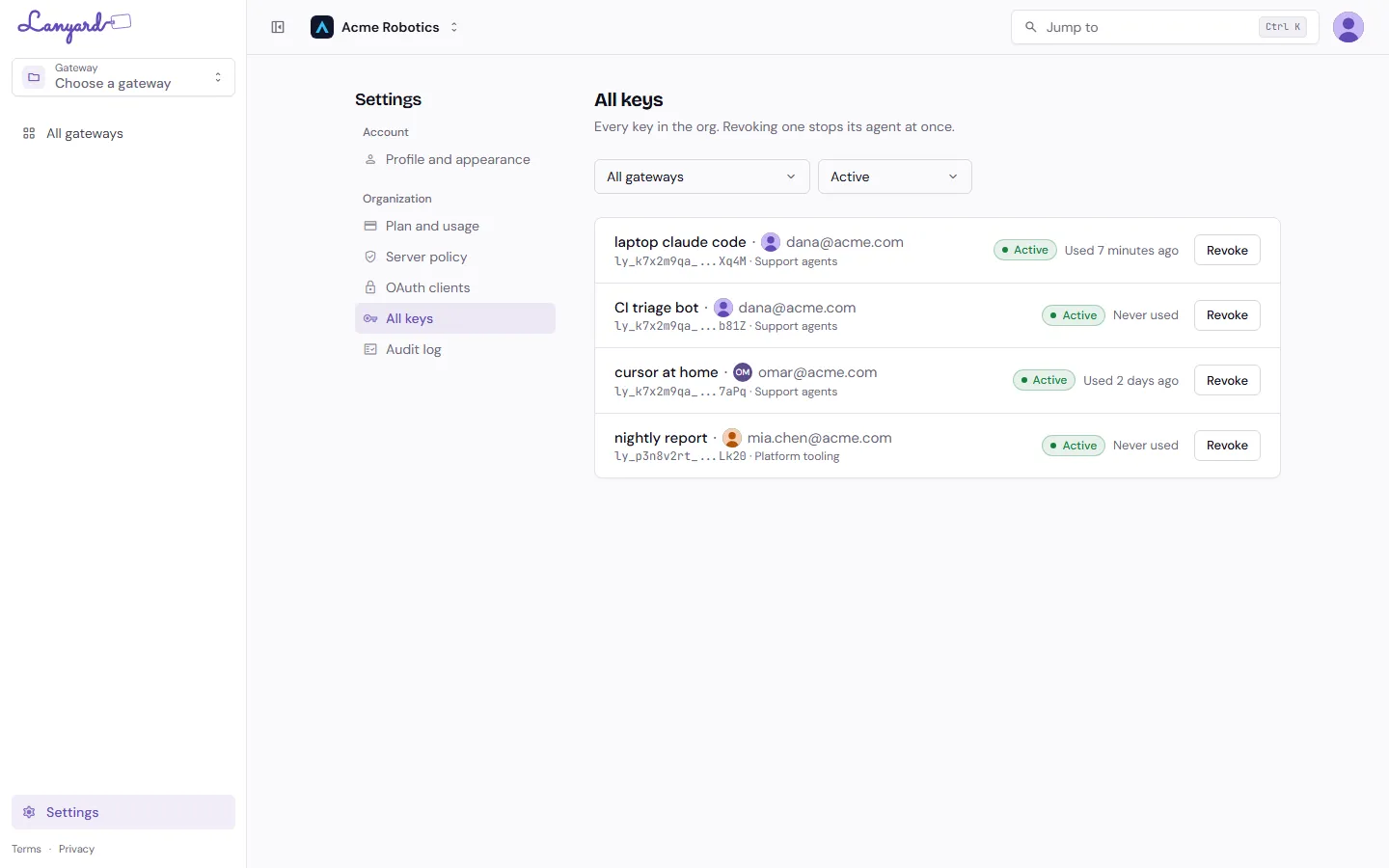
Filter by gateway or by status, and revoke from here. This is the page for the morning somebody leaves, or a laptop goes missing.
Lanyard also revokes keys on its own when access changes: losing membership of a gateway, or leaving the organization, revokes the keys that depended on it. Those revocations show up in Activity attributed to Lanyard rather than to a person.