Getting Started
Open Lanyard and sign in
Section titled “Open Lanyard and sign in”Lanyard uses your Infragate organization identity. You sign in once and land in the organization that is currently active.
Open Lanyard-
Sign in
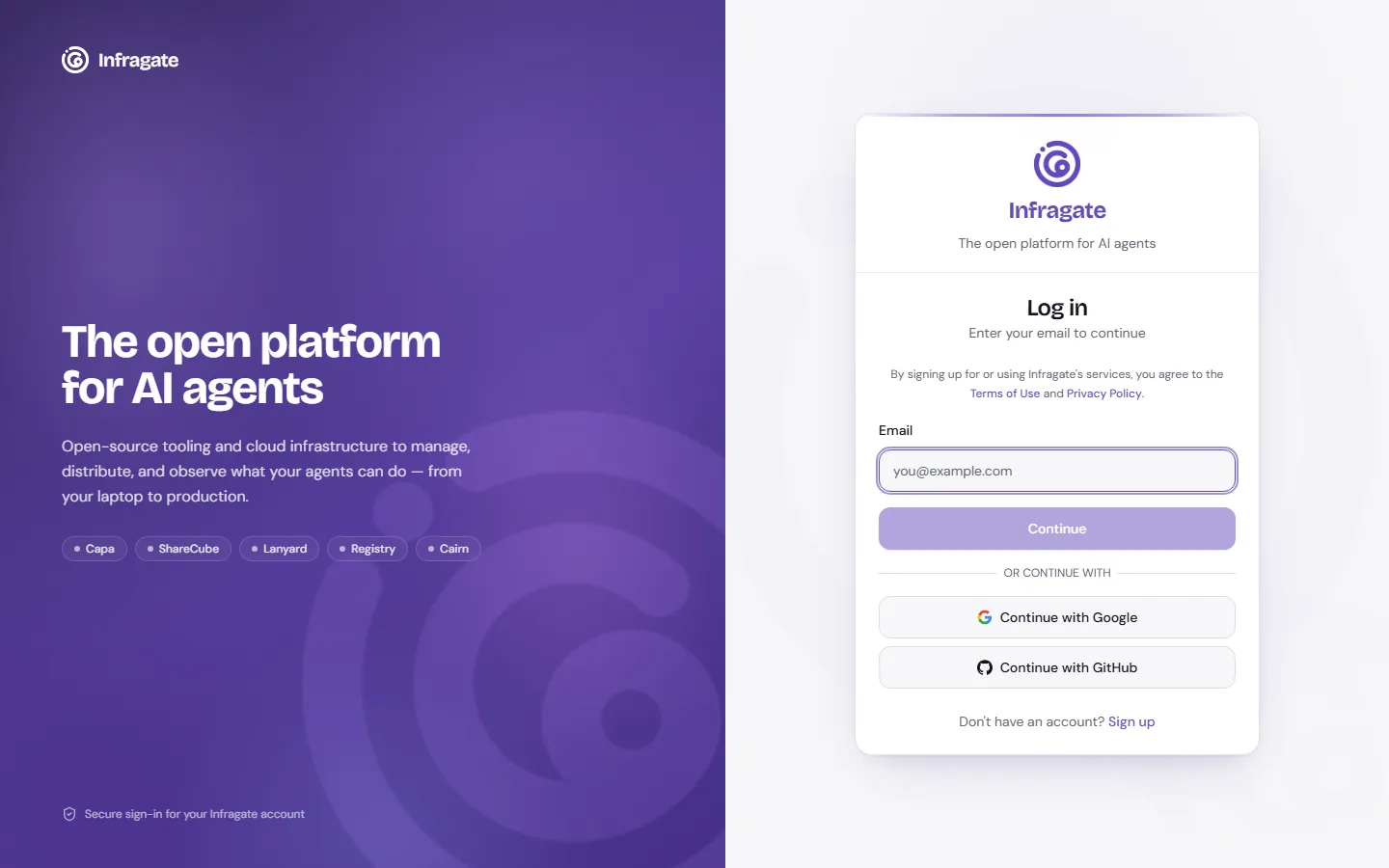
Section titled “Sign in”Go to lanyard.infragate.ai. Enter your email and continue. You can sign in with Google, GitHub, a username and password, or SSO if your organization uses it.
-
Create a gateway
Section titled “Create a gateway”A new organization has no gateways. Click New gateway, give it a name your team will recognise, and create it.
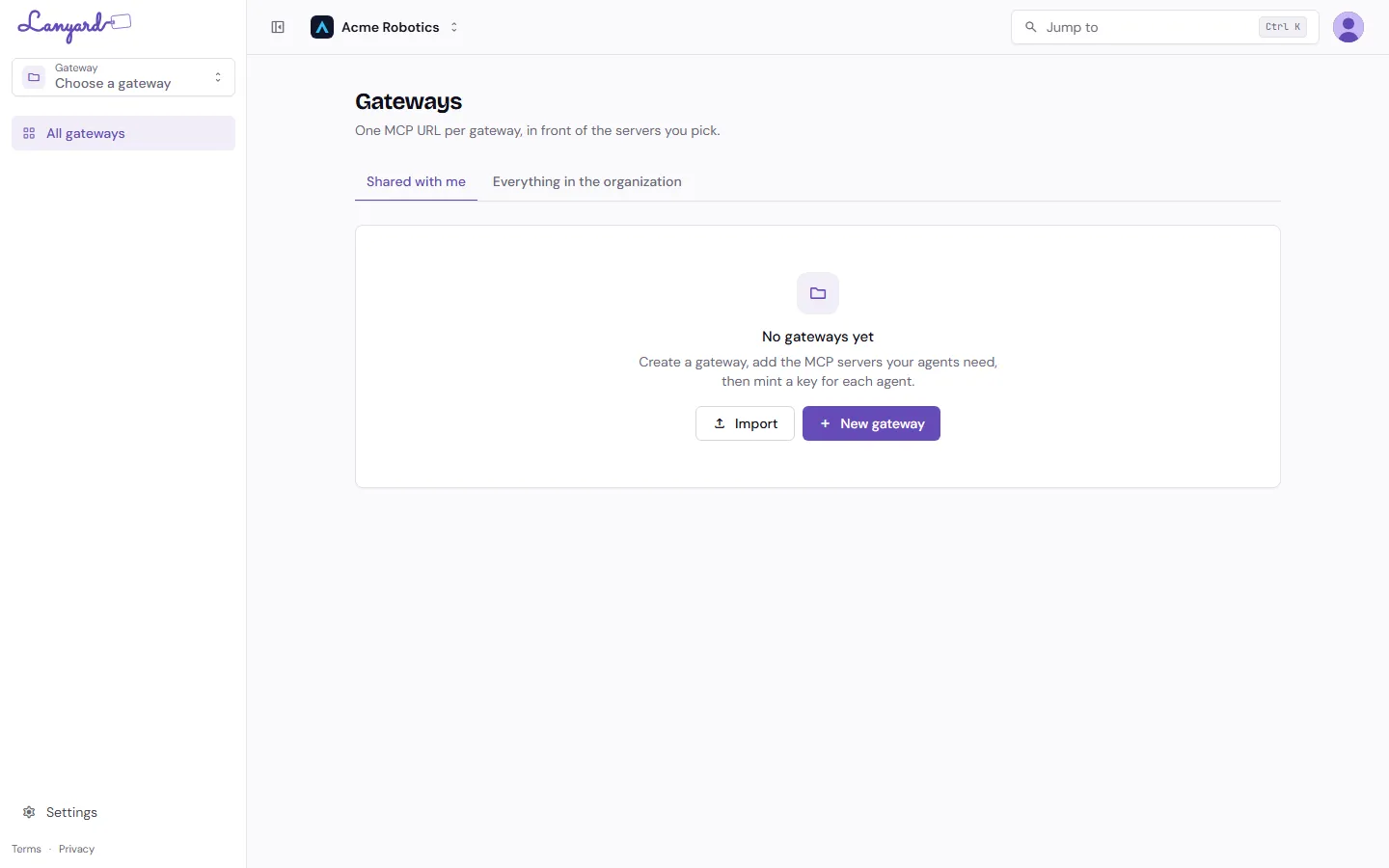
A gateway is one MCP URL in front of the servers you pick. Most teams end up with a few: one per squad, or one per job the agents do.
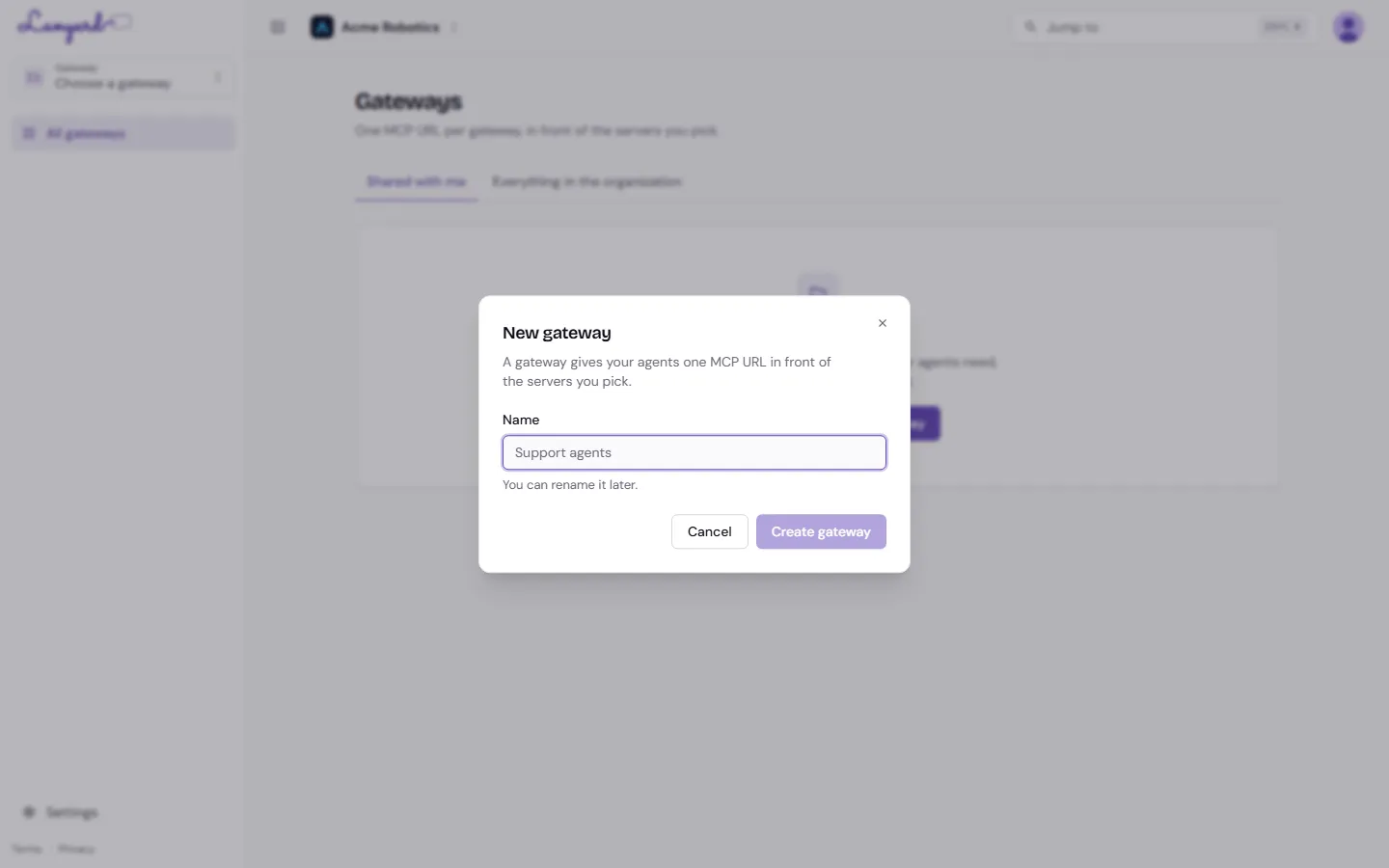
You become its owner. You can rename it later; the gateway id in the URL never changes.
-
Add a server
Section titled “Add a server”On the gateway’s Overview, click Add server. Pick one from the catalog, or paste any remote MCP endpoint as its provider documents it.
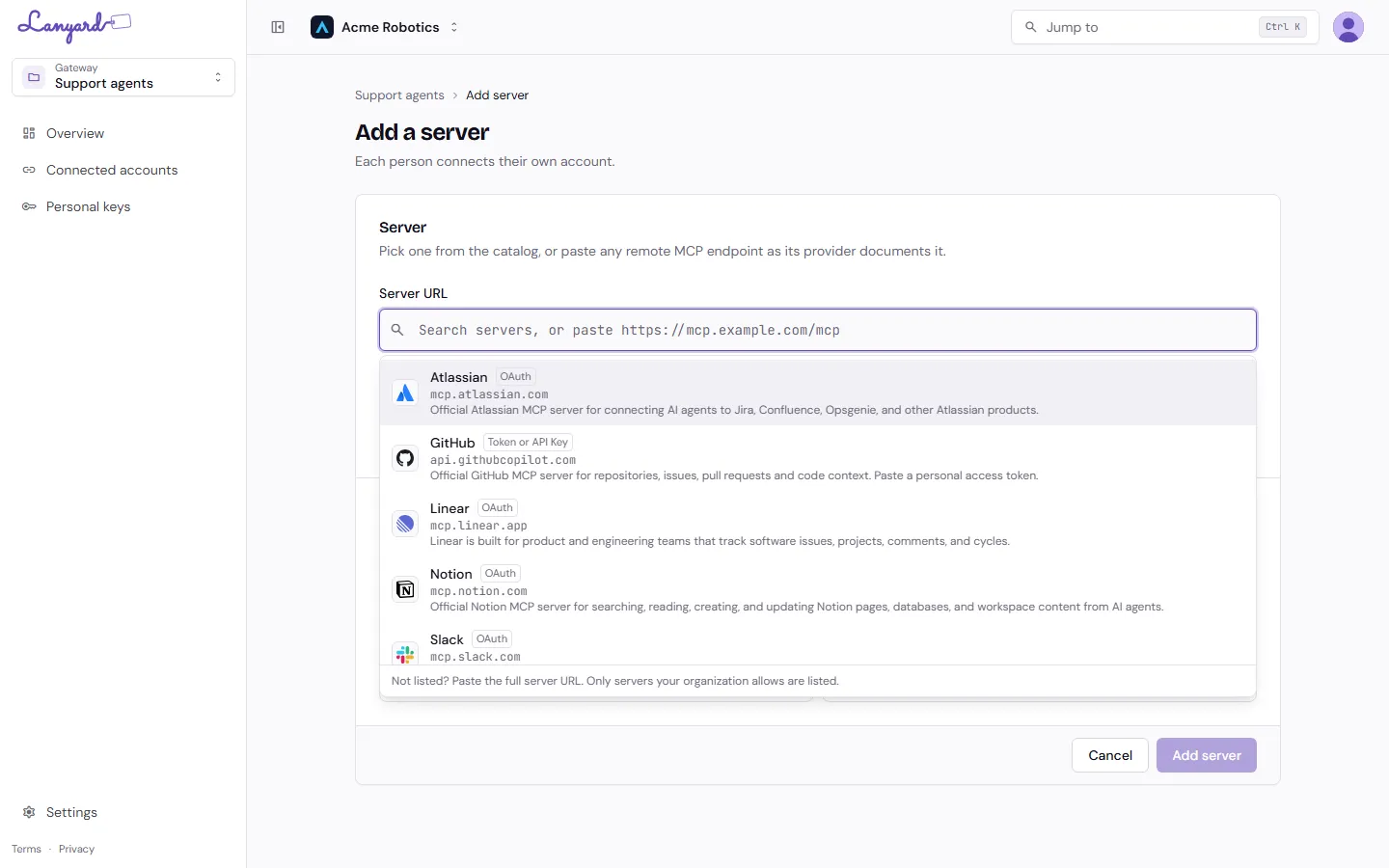
Lanyard works out how the server signs people in (OAuth, a token, or nothing at all), fetches its tool list, and turns on the read-only tools straight away. Anything that writes or deletes waits for you to tick it.
-
Connect your account
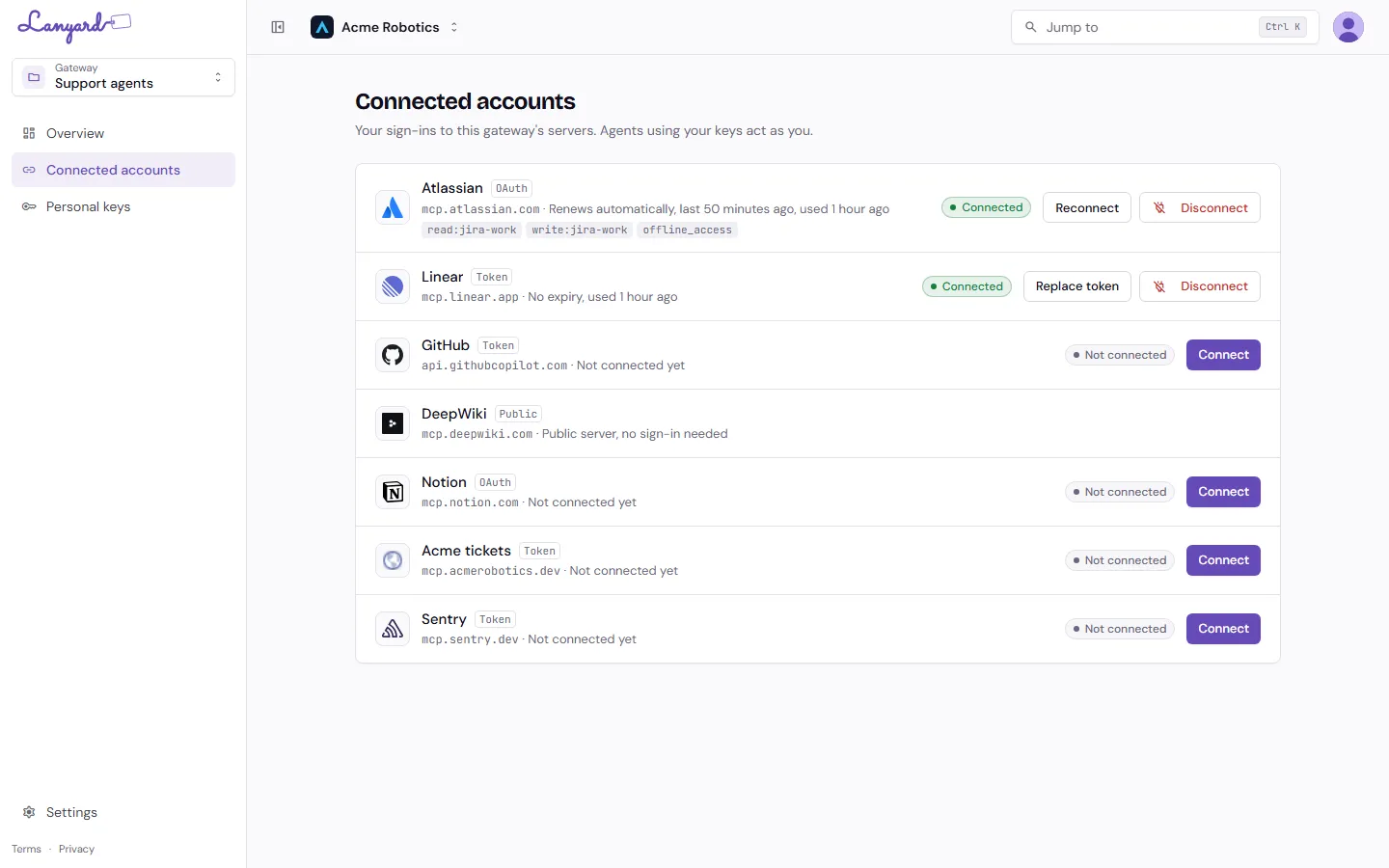
Section titled “Connect your account”Servers like Atlassian or Linear need a sign-in. Open Connected accounts and connect the ones you will use. You sign in as yourself, so agents using your keys act with your own permissions.
-
Mint a key and point your agent at it
Section titled “Mint a key and point your agent at it”Open Personal keys, click Create key, and name it after the agent that will hold it. Copy the secret when it is shown; it is not shown again.
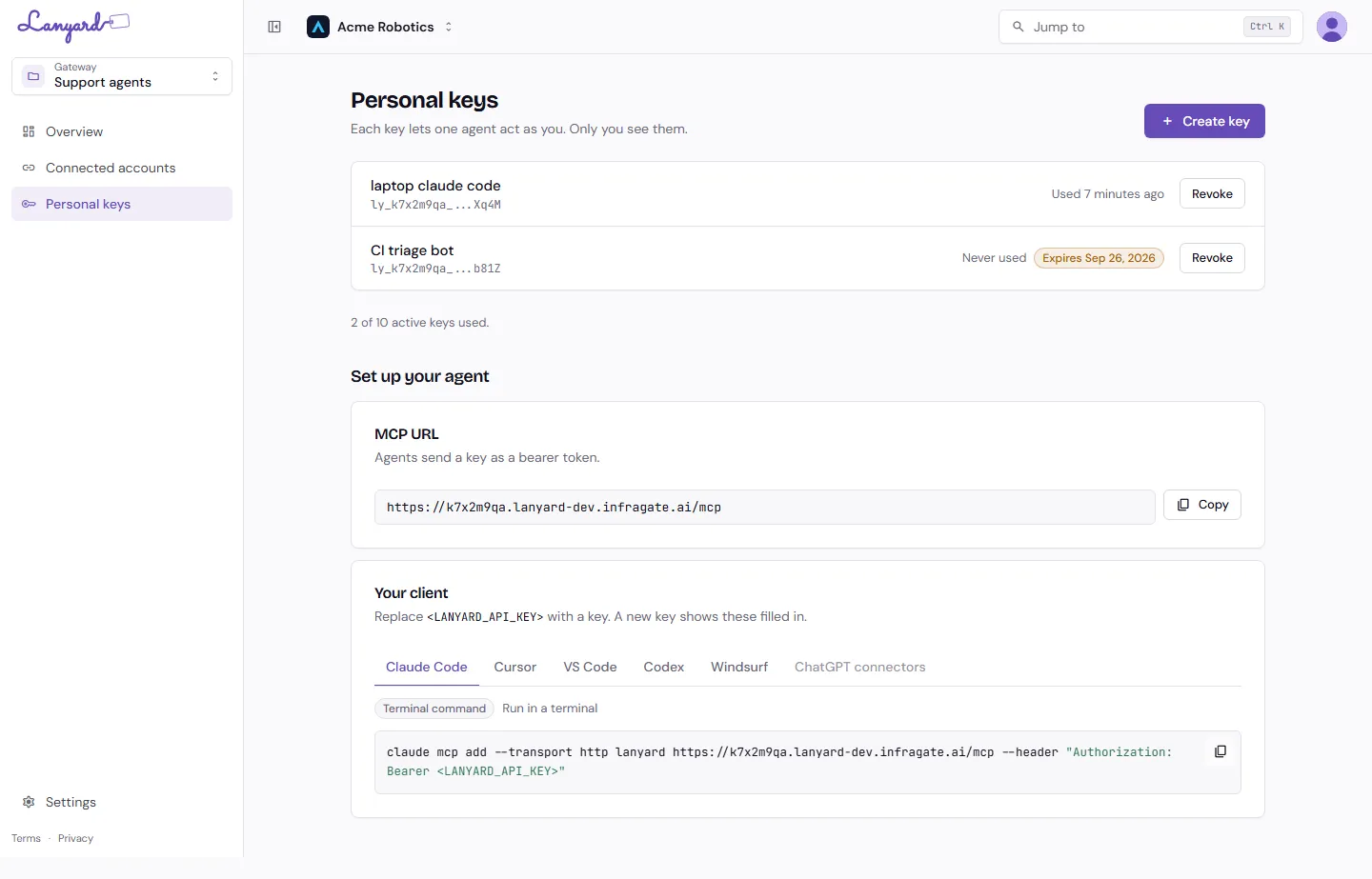
Under Set up your agent, pick your client and copy the command or config. It already has the gateway’s MCP URL in it, and a new key fills the placeholder in for you.
What the Overview tells you
Section titled “What the Overview tells you”Back on the gateway’s Overview, the diagram at the top is the fastest way to see whether your agents can actually do anything. Each server shows its tool count and a dot: green means ready, grey means it still needs a sign-in or a tool pick.
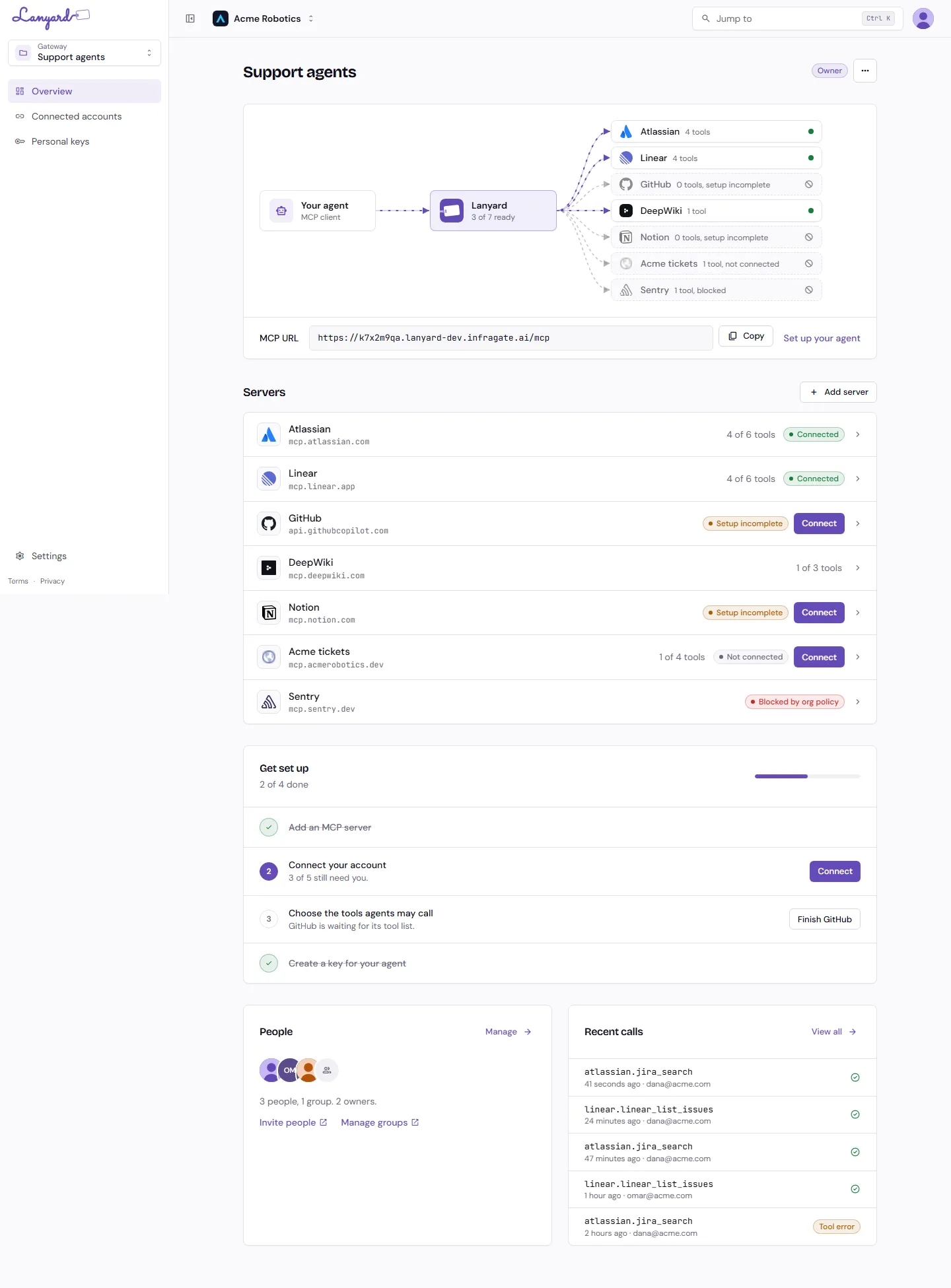
Underneath, Get set up tracks the four things every gateway needs: a server, a connected account, a tool list, and a key. It disappears once you are done.
What to do next
Section titled “What to do next”- Pick the tools agents may call before you hand the key to anything that can write.
- Share the gateway with your team, or with a group from your identity provider.
- Watch the calls your agents make.