

Gateways
A gateway is one MCP URL in front of a set of servers. Your agents point at the URL. What they can reach behind it is what you put there.
Everything else in Lanyard hangs off a gateway: the servers, the tool picks, who it is shared with, the keys people mint, and the calls those keys make.
The gateways list
Section titled “The gateways list”All gateways in the sidebar lists everything you can open.
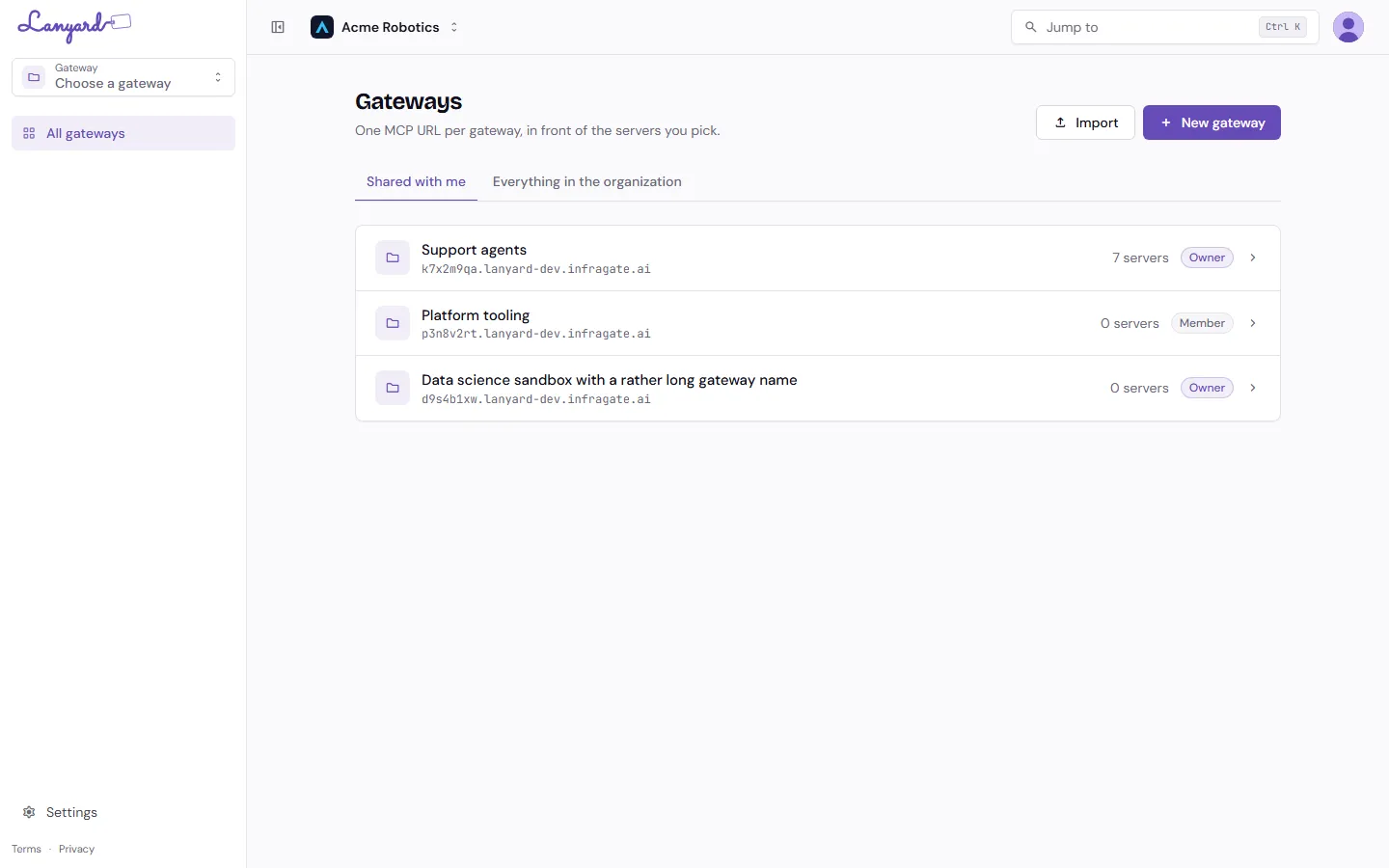
Two tabs:
- Shared with me is what you can actually use: the gateways you own and the ones somebody shared with you. Your role on each is on the right.
- Everything in the organization is for org admins. It shows every gateway in the org, including ones nobody shared with you, so you can find the one an agent is complaining about.
Each row shows the gateway’s own hostname. That hostname plus /mcp is its MCP URL.
Create a gateway
Section titled “Create a gateway”New gateway, then a name. You become the owner.
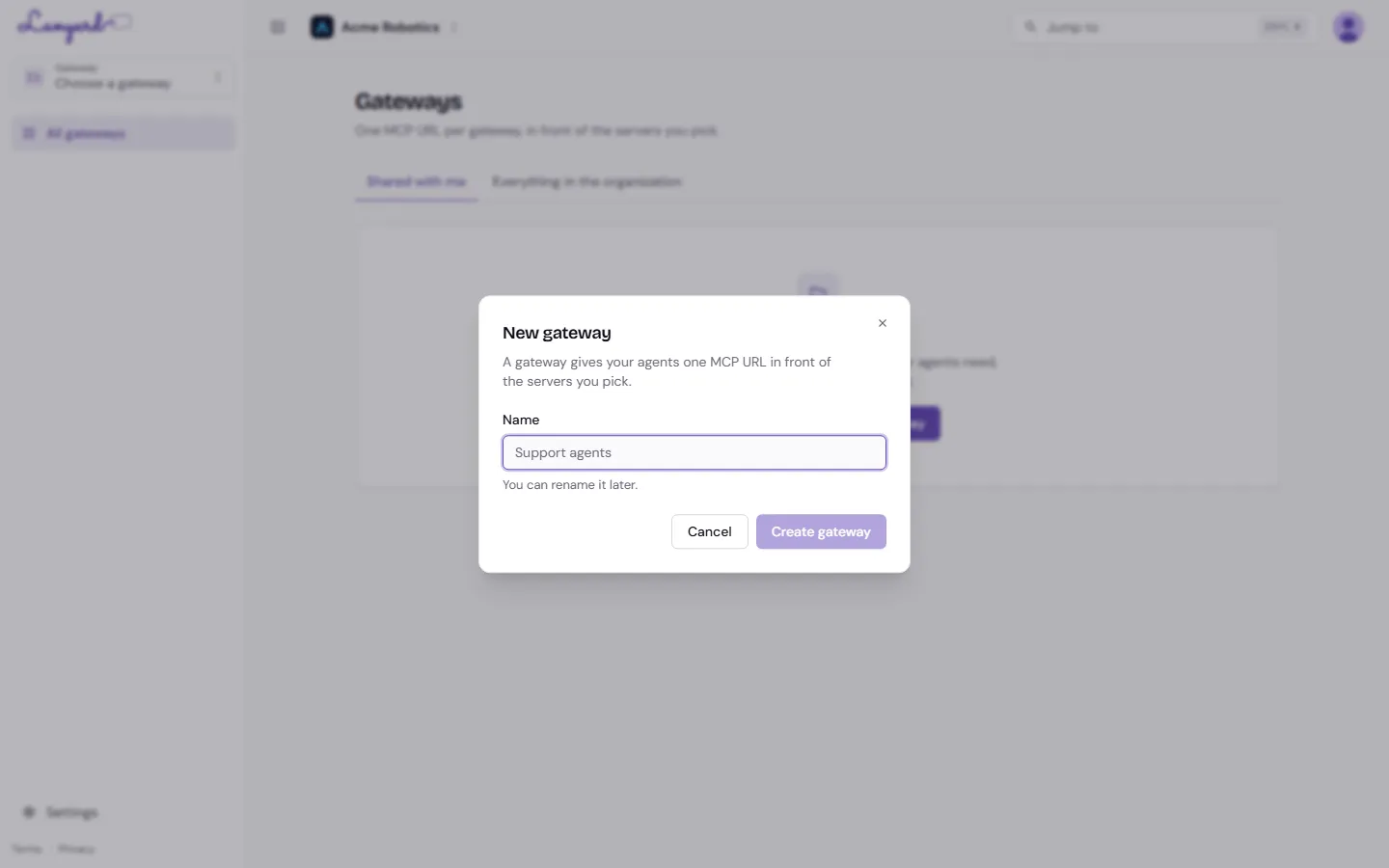
Name it after the job, not the tool: “Support agents” ages better than “Jira gateway”, because the second server you add will not be Jira.
The Overview
Section titled “The Overview”Open a gateway and you land on its Overview.
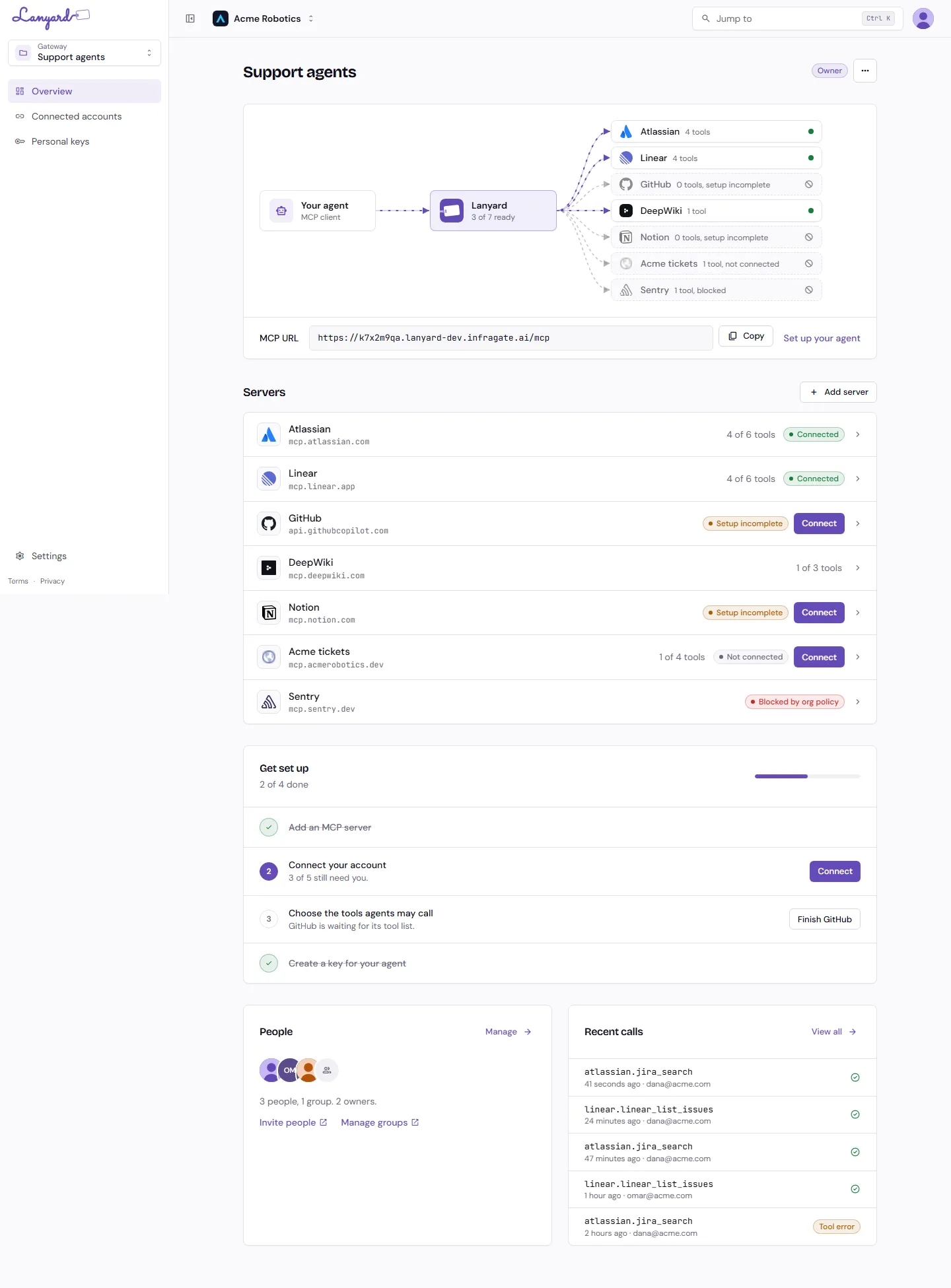
The diagram is the state of the gateway at a glance. Your agent on the left, Lanyard in the middle, every server on the right with its tool count. A solid arrow and a green dot mean agents can call it now. A dashed arrow means something is missing: no sign-in yet, no tools ticked, or the server is blocked by org policy.
MCP URL is what you give an agent. Copy puts it on the clipboard; Set up your agent takes you to the ready-made config for your client.
Servers lists what is behind the gateway, each with how many of its tools are allowed and whether your account is connected.
Get set up is a four-step checklist that appears until the gateway is usable: add a server, connect your account, pick the tools, create a key. It counts the people who still need to connect, so an owner can see that a teammate has not finished.
People and Recent calls are shortcuts into Sharing and Activity.
Gateway settings
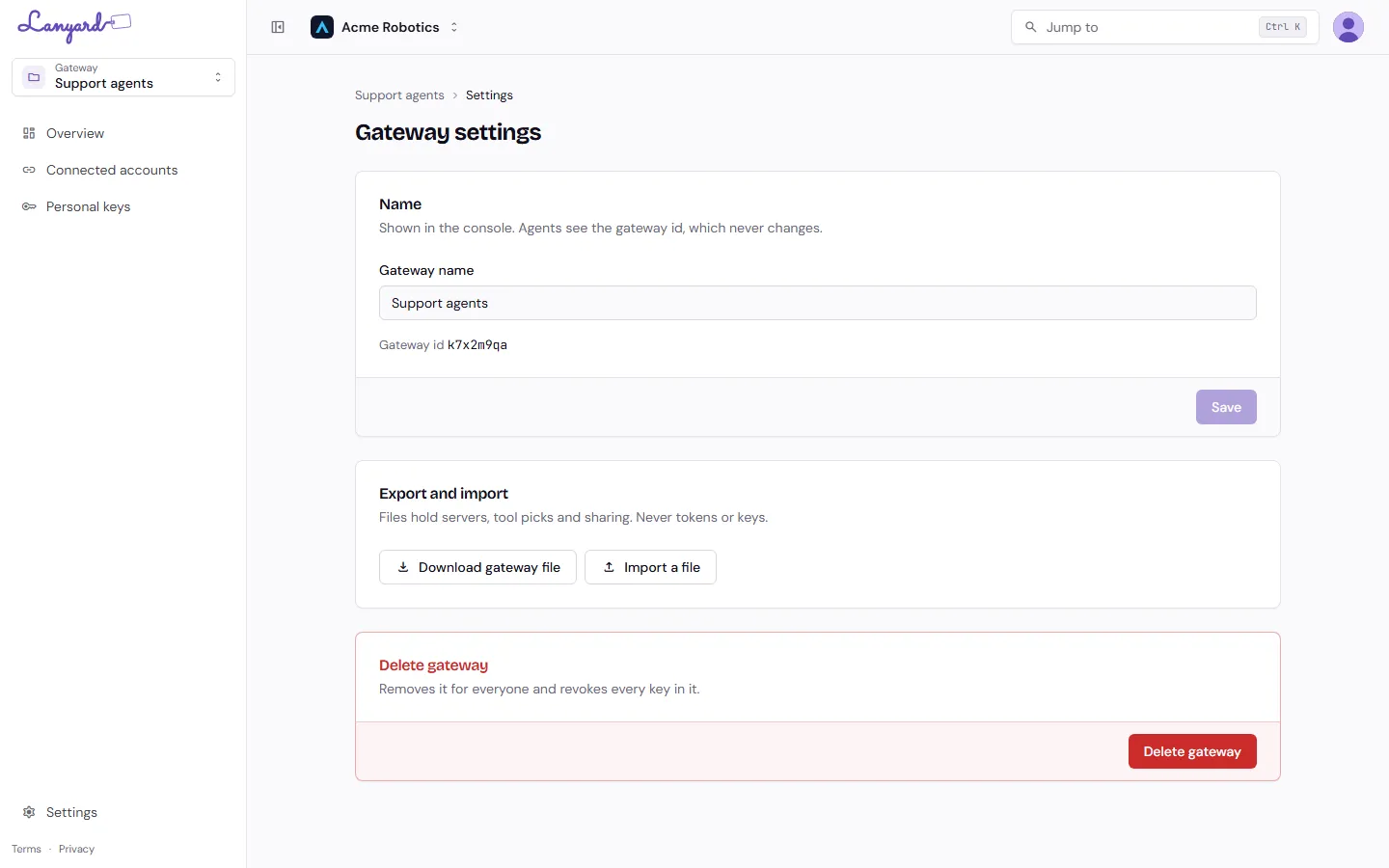
Section titled “Gateway settings”The ... menu next to the gateway name, or Settings in the breadcrumb, opens the gateway’s own settings.
Rename
Section titled “Rename”The name is what people see in the console. Agents use the gateway id, which never changes, so renaming never breaks a running agent.
Export and import
Section titled “Export and import”Download gateway file writes the gateway’s servers, tool picks and sharing to a file. Import a file reads one back, either into a new gateway or over this one.
Files never carry tokens or API keys. Everyone connects their own accounts and mints their own keys in the new gateway. Importing over an existing gateway shows you what would change before it changes it, and an import that mentions someone who is not a member of your organization skips them and says so.
This is how you copy a working setup between organizations, or keep a gateway definition in version control.
Delete
Section titled “Delete”Deleting a gateway removes it for everyone in it and revokes every key inside it at once. Agents holding those keys start failing immediately. There is no undo.
Roles on a gateway
Section titled “Roles on a gateway”Two roles, plus what your organization role already gives you:
| Owner | Member | |
|---|---|---|
| Use the gateway with their own keys | yes | yes |
| Connect their own accounts | yes | yes |
| Add, edit and remove servers | yes | no |
| Pick which tools agents may call | yes | no |
| Share it with other people | yes | no |
| Rename, export, import, delete | yes | no |
| See everyone’s keys and the gateway’s full activity | yes | no |
Org Owners and Admins can do everything an owner can on any gateway in the organization, whether or not it is shared with them. Org Viewers cannot create gateways at all.
See Sharing for how to hand these out.